
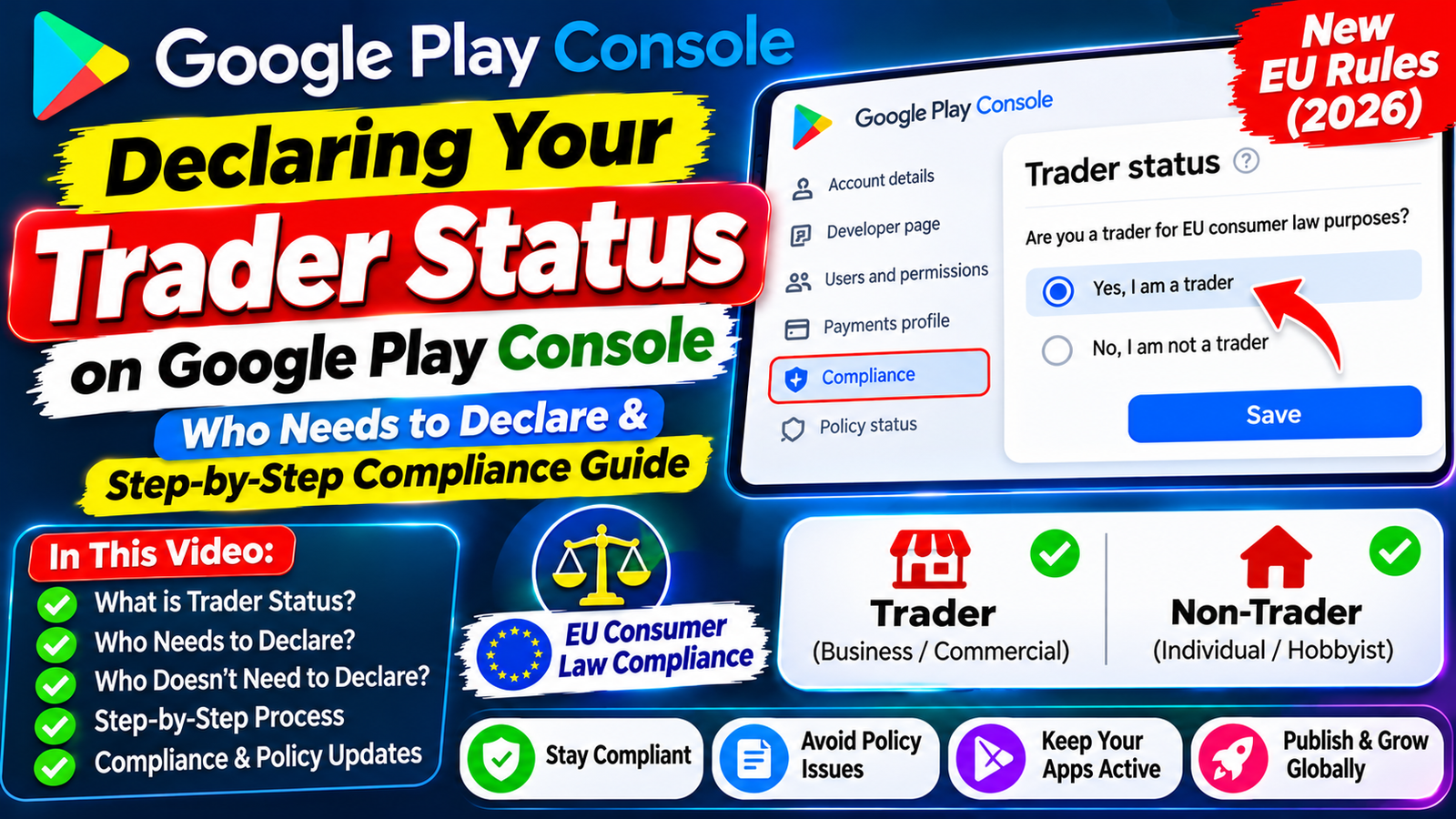
Declaring your Google Play Console Trader Status is a mandatory compliance step for distributing apps globally. Review your app monetization, determine whether your activities constitute commercial trade, update your Play Console account settings, and link a valid Terms of Service URL. If publishing under a Personal Developer Account.
If you own or manage an active Android developer account on the Google Play Console, you must comply with Google's policy requiring all developers worldwide to declare their Trader vs. Non-Trader Status.
This rule supports regulatory alignment with legal frameworks such as the European Union’s Digital Services Act (DSA), the EU Unfair Commercial Practices Directive (UCPD), and the United Kingdom’s Digital Markets, Competition and Consumers Act (DMCCA).
Whether your application targets users in Paris, London, Tokyo, or New York, you must complete this declaration by February 1, 2027. Failing to meet this mandatory deadline can trigger global update blocks or result in your applications being removed from the Google Play Store.
This guide breaks down what "Trader Status" means, how to evaluate your account, the step-by-step declaration procedure inside the Play Console, public privacy implications, and how to protect your apps from policy suspensions.
What Is Google Play Trader Status?
Under European Economic Area (EEA) and United Kingdom (UK) laws, online marketplaces must inform consumers whether a software provider is a trader (a business entity or commercial operator) or a non-trader (a private individual operating for non-commercial or hobby purposes).
[Developer Account] ➔ [Evaluates Commercial Activity] ➔ [Selects Trader or Non-Trader in Play Console] ➔ [Public Consumer Disclosure]
The Global Scope & Hard Deadlines
Universal Declaration Rule: Every active developer account must submit a declaration—even if your apps are published strictly outside the EEA or UK.
New Developer Accounts: Must complete the Trader Status declaration immediately upon account creation.
Existing Developer Accounts: Must complete the declaration by February 1, 2027.
User-Facing Display Date: Information and consumer protection disclosures become visible on public store listings.
If you do not distribute your apps in the EEA or the UK, Google allows you to declare as a non-trader. However, your declaration must remain accurate and truthful relative to your global business practices.
Who Qualifies as a Trader? (Evaluation Criteria)
Under applicable consumer protection laws, a Trader is defined as any natural or legal person acting for purposes relating to their trade, business, craft, or profession. If you build and publish apps purely outside of these scope boundaries (such as a personal hobby with zero commercial intent), you are generally classified as a Non-Trader.
Google cites non-exhaustive criteria adapted from European Commission guidance (Section 2.2, "The concept of trader") to help you evaluate your status:
                               ┌───────────────────────────────────────────┐
                               │   Evaluating Your Play Console Status    │
                               └─────────────────────┬─────────────────────┘
                                                     │
                 ┌───────────────────────────────────┴───────────────────────────────────┐
                 ▼                                                                       ▼
┌─────────────────────────────────┐                                     ┌─────────────────────────────────┐
│         Trader Status           │                                     │       Non-Trader Status         │
└────────────────┬────────────────┘                                     └────────────────┬────────────────┘
                 ├─ Monetized (Paid, IAPs, Ads)                                          ├─ Pure Personal Hobby Project
                 ├─ High or Regular Transaction Volumes                                  ├─ Zero Revenue or Ad Integration
                 ├─ Registered Business / D-U-N-S Profile                                ├─ No Commercial Organization
                 └─ Published to Support a Commercial Entity                             └─ Apps Distributed Outside EEA/UK
Key Criteria for Evaluation:
Profit-Seeking Motive: You receive or intend to receive regular payment for your apps. This includes paid upfront app downloads, in-app purchases (IAP), recurring subscriptions, or ad-sponsored builds (Google AdMob, Unity Ads).
Transaction Volume & Frequency: You manage a steady or high volume of user transactions, downloads, or commercial interactions over time.
Business Setup & Organization: You run your app development, marketing, and support operations in a structured, business-like manner.
Legal Entity Status: You operate under a formal corporate structure or hold legal business credentials (such as an active D-U-N-S number) that authorize commercial trade.
Legal Disclaimer: Google Play Console guidance is provided for informational purposes and does not constitute legal advice. Google will not make legal determinations for your account. If you are uncertain about your legal classification, consult a qualified legal professional.
What Information Will Be Publicly Displayed?
Your declared status directly impacts what contact details consumers see on your public Google Play Store listing.
If You Declare as a Trader:
Consumers in the EEA and UK will see explicit disclosures stating that consumer protection rights apply to their purchases. Additionally, your store listing will display:
Your official legal name or registered business name.
Your physical business address.
Your public contact email address and support phone number.
Your corporate registration info (such as your D-U-N-S number for Organization accounts).
A direct link to your app's Terms of Service.
Important Privacy Notice for Personal Accounts: If you run a Personal Developer Account and declare as a Trader, Google Play policy requires you to supply a public contact phone number. Your personal physical address and phone number will be displayed publicly on your store listings.
If You Declare as a Non-Trader:
Google will display a clear notification to consumers in the EEA and UK informing them that statutory EU/UK consumer protection rights do not apply to contracts between you and them. Only your support email and home country will be shown on the store listing.
Step-by-Step Instructions: Declaring Your Trader Status
Completing your declaration requires a two-tiered workflow: setting your overall account-level status, and confirming it for individual apps across your portfolio.
1.Sign In to Play Console:Account Access & Credentials.
Log into your Google Play Console dashboard using your primary developer account owner credentials.
2.Declare Overall Trader Status:Account-Level Settings.
Navigate to Manage account > Account details > About you, follow the on-screen prompts, and select either Trader or Non-Trader for your overall developer profile.
3.Confirm Trader Status for Each App:App-Level Verification.
If declared as a Trader, open each individual app in your dashboard, navigate to Policy and programs > App content, and confirm the Trader status for that specific app build.
4.Provide Compliance Assets:Terms of Service & Self-Certification.
If declared as a Trader, submit a valid Terms of Service link for each app and self-certify that your software complies with applicable EU/UK consumer protection laws.
Warnings: Misrepresentation & Automated Audits
Do not attempt to declare as a "Non-Trader" simply to hide your personal phone number or physical address if your app generates income.
1. Severe Legal & Policy Penalties
Under the EU Unfair Commercial Practices Directive (UCPD) and UK Digital Markets, Competition and Consumers Act (DMCCA), falsely claiming or creating the impression that you are not acting as a trader is strictly illegal. Google's Developer Distribution Agreement (DDA) mandates immediate account enforcement—including global app removal and permanent account termination—for false trader declarations.
2. Automated Detection & Re-Evaluation Scans
Google continuously scans developer accounts for signals indicating commercial activity (e.g., active AdMob units, in-app billing SDKs, high transaction volume, or linked merchant accounts).
If Google detects commercial activity on an account declared as a Non-Trader, the platform will issue an automated compliance demand. Failing to update your status within the requested timeframe will result in your applications being removed from Google Play worldwide.
Navigating Pre-Launch Hurdles: Closed Testing Rejections
While resolving account compliance policies like the Trader Status declaration, independent developers—especially those managing Personal Developer Accounts created after November 2023—face another major administrative hurdle: Google's mandatory 14-day closed testing rule.
Before you can publish any app (whether free, ad-supported, or paid) to the public storefront, Google requires you to run a closed test with at least 12 verified testers who must keep the app installed and actively test it for 14 consecutive, uninterrupted days.
Why Closed Testing Tracks Get Rejected
Many developers wait out 14 days of testing with friends or casual forum contacts, only to receive a rejection email stating: "Your app requires more testing before it can be pushed to production."
This happens due to four common failure points:
The "Ghost Tester" Problem: Casual testers download your app on Day 1, open it once for three seconds, and never launch it again. Google tracks background Play Services session telemetry; shallow session opens trigger an automatic rejection.
Mid-Cycle Uninstalls: If a tester deletes your app on Day 10, your active tester count drops below 12. Your 14-day streak breaks, resetting your countdown timer back to Day 1.
Emulator Footprints: Free swap pools often attempt to simulate installs using desktop emulators. Automated devices are flagged by Google's verification scanners.
Vague Survey Answers: Writing generic answers on the 10-question Production Access Questionnaire (e.g., "No bugs found, app works fine") signals to reviewers that no genuine quality assurance occurred.
The Solution: Deploy Managed Professional Testing
To avoid 14-day reset loops and secure production access on your first attempt, the safest strategy is to partner with a managed professional closed testing platform like inTesters.
Instead of chasing unreliable contacts, an enterprise testing service provides:
Guaranteed 14-Day Track Stability: Assigns 20+ verified human testers across 16 continuous days, maintaining a safe buffer well above Google's 12-tester minimum.
100% Real Physical Hardware: Vetted testers evaluate your application across real physical devices (Samsung, Pixel, OnePlus, Xiaomi) spanning Android 11 through 15—never emulators.
Deep User Telemetry: Testers launch your app daily and interact with menus and forms for 2 to 3 minutes per session, generating the real engagement telemetry Google expects.
Questionnaire Support: Receive detailed QA reports, crash logs, and feedback summaries to help you answer Google's 10-question Production Access Questionnaire accurately.
About the Author

Pratyush Kumar Thakur
Expert software tester and contributor to the community. Passionate about AI, automation, and user experience.