
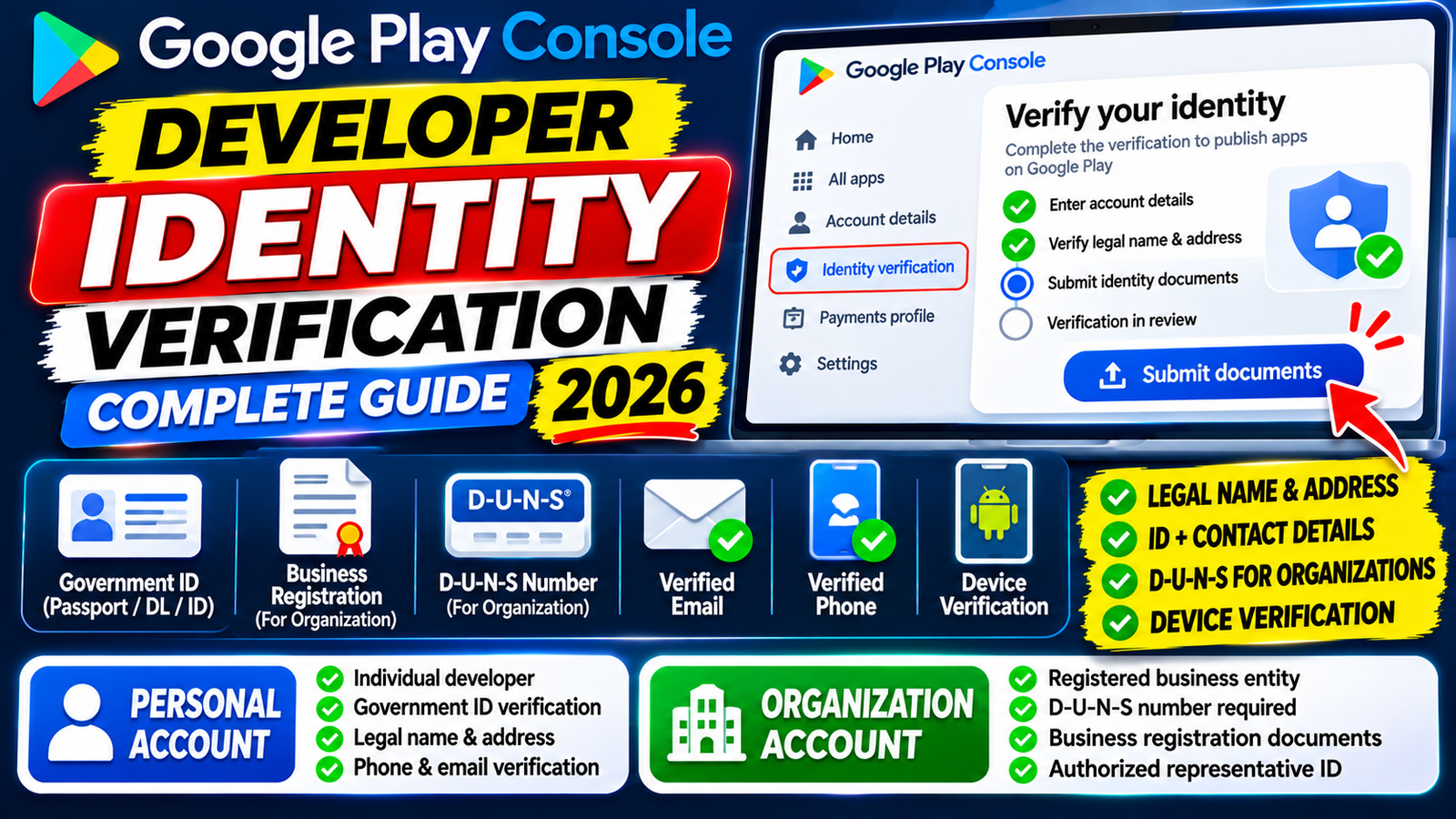
This complete guide breaks down identity verification requirements, explains how to set up public and private contact details correctly, and details how to overcome post-verification publishing barriers like the 14-day closed testing rule.
Google Play enforces strict identity verification protocols across all developer accounts. Designed to keep the ecosystem safe, eliminate malware, and prevent bad actors from abusing the platform, completing identity verification is a mandatory requirement whether you operate a personal account or represent a corporate entity.
Developers receive a notification in the Play Console allowing them to complete verification up to 60 days before their individual account deadline. Failing to verify within this window can block app publishing or lead to the removal of your apps from the store.
1. Choosing Your Developer Account & Payments Profile
Verification requirements differ significantly depending on whether you register as a Personal Account or an Organization Account. Selecting the correct type from day one is critical, as this determines your Google Payments Profile setup.
┌─────────────────────────────────────────────────────────────────────────────┐
│                 Google Play Account Types & Requirements                    │
├──────────────────────────────┬──────────────────────────────┬───────────────┤
│ Verification Feature         │ Personal Account             │ Organization  │
├──────────────────────────────┼──────────────────────────────┼───────────────┤
│ Payments Profile             │ Individual Profile           │ Business      │
├──────────────────────────────┼──────────────────────────────┼───────────────┤
│ Key Document Requirement     │ Government Photo ID          │ D-U-N-S + ID  │
├──────────────────────────────┼──────────────────────────────┼───────────────┤
│ Mandatory Website            │ Optional (Recommended)       │ Required      │
├──────────────────────────────┼──────────────────────────────┼───────────────┤
│ Real Device Verification     │ Required (Play Console App)  │ Exempt        │
├──────────────────────────────┼──────────────────────────────┼───────────────┤
│ Direct Production Publishing │ No (Requires Closed Test)    │ Yes           │
└──────────────────────────────┴──────────────────────────────┴───────────────┘
Personal Accounts
Must link an individual Google Payments Profile.
Requires submitting an official government-issued photo ID (e.g., Passport, Driver's License, or National ID card) matching the legal name on the payments profile.
Requires device verification via the Play Console mobile app.
Organization Accounts
Must link an official organization payments profile.
Requires an active D-U-N-S Number (Data Universal Numbering System) issued free by Dun & Bradstreet.
Requires an official corporate website, business registration certificates, and an ID verification check for the designated account administrator.
2. Public Information Shown on Google Play
Google collects and verifies information that will be displayed publicly on your store listings so users know who created the app.
Legal Name and Address
Your legal identity details are verified via your linked Google Payments profile. For organizations, your legal business name and corporate address will appear on store listings. For personal accounts, your legal name and country are displayed.
Developer Email Address
All developers must verify a public support email address:
Go to Manage account > Account details.
Enter your public developer email address.
Click Verify email address to receive a 6-digit verification code.
Enter the code and click Verify.
Developer Phone Number
Organization accounts (and personal accounts publishing in specific regions like South Korea) must provide and verify a public phone number.
Prerequisites Warning: You cannot verify your public developer phone number until you complete Identity Verification, Website Verification (for organizations), and Device Verification (for personal accounts).
Verification steps:
Go to Manage account > Account details > Contact details.
Enter your phone number in E.164 international format (e.g.,
+14155552671or+441234567890).Choose whether to receive the 6-digit code via SMS or voice call.
Enter the code and complete verification.
3. Private Contact Information (Used Only by Google)
To prevent platform abuse and ensure reliable communication, Google collects private contact details that are never shown on Google Play.
Contact Phone Number
Complete all prerequisite verifications (Identity, Website, or Device Verification).
Navigate to Manage account > Account details > Contact details > How Google contacts you.
Enter your private phone number in international format (
+CountryCode AreaCode Number).Select SMS or Voice Call, enter the 6-digit code received, and click Verify.
Contact Email Address
Navigate to Manage account > Account details > Contact details > How Google contacts you.
Enter your private contact email address.
Click Verify email address and submit the 6-digit code.(Note: If this email address has already been verified as part of your primary Google Account, this step is automatically validated).
4. Account-Specific Verifications
Device Verification (Personal Accounts Only)
To ensure developers can properly test apps on physical hardware before releasing them, Google requires owners of new personal accounts to verify access to a real Android mobile device using the Play Console mobile app. You cannot make your app available on Google Play until device verification is completed.
1.Install Play Console App:Mobile Access.
Download the official Google Play Console app onto a physical Android smartphone.
2.Sign In with Owner Account:Account Authentication.
Log into the app using the primary Google account credentials associated with your developer profile.
3.Complete On-Screen Prompt:Validation Prompt.
Follow the prompt inside the app to link and verify your physical device to your Play Console dashboard.
5. What Happens After Identity Verification? (The Closed Testing Barrier)
Completing identity verification is a major milestone, but for Personal Developer Accounts, it is only the first step.
Once your account identity is verified, Google requires you to complete the 14-day / 12-tester closed testing mandate before unlocking your Production track and allowing public app publishing.
[Identity & Device Verification] ➔ [Upload .AAB Build] ➔ [14-Day / 12-Tester Closed Test] ➔ [Production Questionnaire] ➔ [Public Release]Why DIY Closed Testing Tracks Get Rejected
Many developers verify their identity, invite 12 friends to test their app, wait 14 days, and then receive a rejection notice stating: "Your app requires more testing before it can be pushed to production."
Common reasons for rejection include:
Shallow Session Activity: Friends install the app on Day 1, open it once for 3 seconds, and never touch it again. Google evaluates session depth via Play Services; inactive installs flag the track as artificial.
Mid-Cycle Uninstalls: If a tester uninstalls your app on Day 10, your active count drops below 12. This breaks your 14-day consecutive streak and resets your timer to Day 1.
Vague Questionnaire Responses: Submitting short or generic answers on the 10-question Production Access Questionnaire signals that no real quality assurance took place.
6. Guarantee Production Access with Managed Professional Testing
To avoid getting stuck in a 14-day reset loop after completing your identity verification, the safest approach is to utilize a managed professional closed testing platform like inTesters.
Instead of relying on casual contacts, a professional testing service provides:
Guaranteed 14-Day Track Stability: Assigns 20+ verified human testers across 16 continuous days, maintaining a safe buffer well above Google's 12-tester minimum.
100% Real Physical Hardware: Vetted testers evaluate your app across real physical Android devices (Samsung, Pixel, Xiaomi, OnePlus)—never emulators.
Deep User Telemetry: Testers launch your app daily and interact with screens and features for 2 to 3 minutes per session, generating the organic engagement metrics Google expects.
Questionnaire Support: Receive detailed QA crash reports, compatibility logs, and feedback summaries to complete Google's 10-question Production Access Questionnaire accurately.
Competitive Analysis: What Other Guides Miss
A review of popular identity verification guides highlights several critical operational details that are often omitted:
Name Matching Restrictions: The legal name on your government photo ID must match your Google Payments Profile character-for-character. Small mismatches (e.g., missing middle names or abbreviated addresses) cause automated rejections.
D-U-N-S Sync Delays: Organization accounts must ensure their Dun & Bradstreet address matches their Google Payments Profile exactly. Address syncs can take up to 30 days to clear D&B systems.
Verification Deadlines: Existing accounts are given a specific 60-day window to complete verification. If you attempt to verify before your designated 60-day window opens, the prompt will not be visible on your Play Console homepage.
About the Author

Pratyush Kumar Thakur
Expert software tester and contributor to the community. Passionate about AI, automation, and user experience.