
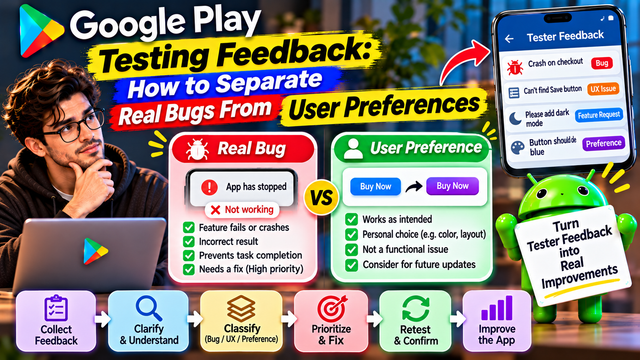
Learn how to separate real bugs from user preferences during Google Play Closed Testing, classify tester feedback, identify UX issues, prioritize problems, and improve your Android app.
Tester feedback is one of the most valuable parts of Google Play Closed Testing.
It is also one of the easiest things to misunderstand.
One tester says:
“The button should be blue.”
Another says:
“The button should be green.”
A third says:
“The button is fine.”
Congratulations. You now have three opinions and absolutely no idea whether anything is actually broken.
The challenge is to separate real bugs and usability problems from personal preferences so you can focus your development time on issues that genuinely affect the user experience.
Google recommends maintaining a record of tester feedback, reviewing it regularly, identifying recurring themes, prioritizing improvements, and acting on reported issues during the testing period.
This guide explains how to evaluate tester feedback systematically.
What Is the Difference Between a Bug and a Preference?
The simplest distinction is:
A bug means something is not working as intended.
A preference means something works, but the tester would personally like it to be different.
For example:
Tester Feedback
Likely Classification
App crashes when opening checkout
Bug
Login button does nothing
Bug
Payment fails unexpectedly
Bug
Text overlaps another element
Bug
Page takes unusually long to load
Potential performance issue
"I don't like the button color"
Preference
"I prefer dark mode"
Feature suggestion
"The font should be bigger"
Potential UX issue
"I would place the menu somewhere else"
Preference / UX suggestion
"I couldn't find the menu"
UX issue
The important part is context.
A comment that sounds like a preference may actually reveal a usability problem.
Why This Distinction Matters
If you treat every preference as a bug, your development process can become chaotic.
You might:
Change the interface constantly
Delay important bug fixes
Add unnecessary features
Follow the loudest tester instead of the strongest evidence
Create inconsistent designs
Waste time solving problems that don't actually affect users
On the other hand, if you dismiss every subjective comment as "just a preference," you may miss serious UX problems.
The goal is not to ignore opinions.
The goal is to investigate what the opinion is telling you.
1. Start With the Expected Behavior
The first question should be:
What is supposed to happen?
You need a defined expected behavior before deciding whether something is broken.
Example
Tester says:
"The app doesn't let me continue."
Don't immediately label it a bug.
Ask:
What were they trying to do?
What should have happened?
What actually happened?
Were they following the intended workflow?
If the Continue button is supposed to move to the next screen and nothing happens, you probably have a bug.
If the tester expected the button to do something different from its intended function, it may be a misunderstanding or UX issue.
2. Ask the Tester to Explain What Happened
Never classify feedback from a single sentence when the situation is unclear.
Suppose a tester says:
"The search doesn't work."
Ask:
What did you search for?
Then:
What result did you expect?
Then:
What result did you receive?
Then:
Did the same thing happen more than once?
Now you can investigate the actual behavior.
This is far more useful than simply recording:
"Tester says search is bad."
3. Use the Expected vs. Actual Method
One of the easiest ways to identify genuine bugs is to document:
Expected behavior
What should happen?
Actual behavior
What happened instead?
Example
Expected:
After tapping Login, the user should reach the dashboard.
Actual:
The button shows a loading indicator and remains on the login screen.
That is strong evidence of a functional problem.
Compare it with:
Expected:
The tester personally prefers the dashboard design.
Actual:
The dashboard functions correctly.
That is more likely a preference.
4. Ask Whether the Problem Prevents the User From Completing a Task
This is an excellent classification test.
Ask:
Does this issue prevent the user from completing an important task?
For example:
"The checkout button doesn't work."
This prevents a core action.
Likely bug.
"I don't like the checkout button's color."
The action still works.
Likely preference.
However, there is an important exception.
If the color, placement, wording, or design makes the button difficult to recognize or use, the feedback may represent a UX problem rather than a simple preference.
5. Understand the Difference Between Bug, UX Issue and Preference
Not everything fits into two categories.
A practical system has at least three.
Category 1: Functional Bug
Something does not work as intended.
Examples:
App crashes
Login fails
Payment fails
Button does nothing
Data disappears
Notification doesn't trigger
Feature produces incorrect results
Category 2: UX Problem
The feature technically works, but users struggle to understand or use it.
Examples:
Users cannot find an important button
Instructions are unclear
Navigation is confusing
Error messages don't explain what went wrong
Important information is hidden
Category 3: Personal Preference
The tester simply prefers another option.
Examples:
"I prefer a blue button."
"I like dark mode."
"I would use a different font."
"I prefer the menu at the bottom."
This three-level classification is much more useful than simply calling everything a bug or ignoring everything subjective.
6. Look for Repeated Feedback
One tester's opinion is useful.
Repeated feedback from several independent testers is much stronger evidence.
For example:
Tester 1:
"I couldn't find the Save button."
Tester 2:
"Where is the Save button?"
Tester 3:
"The Save option is difficult to find."
Now you have a pattern.
The problem may not be that users have different preferences.
The interface may genuinely be unclear.
Google specifically recommends maintaining a record of feedback and reviewing it to identify recurring themes and prioritize improvements.
7. Don't Assume Majority Wins Automatically
Five testers saying something does not automatically make it a bug.
Imagine:
Tester 1: Blue button preferred
Tester 2: Blue button preferred
Tester 3: Blue button preferred
Tester 4: Blue button preferred
Tester 5: Blue button preferred
That tells you there is a strong preference.
But if the current button is functional, visible, accessible, and consistent with your design system, changing it may still be unnecessary.
Feedback should inform decisions, not automatically dictate them.
8. Look at the Impact of the Problem
Classify feedback based on impact.
Critical
The issue prevents a major function from working.
Examples:
App crashes on startup
Users cannot log in
Payment cannot be completed
Important data is lost
High
The issue significantly affects an important workflow.
Examples:
Checkout frequently fails
A major feature behaves incorrectly
Navigation prevents users from completing a task
Medium
The app works, but the problem creates meaningful friction.
Examples:
Confusing navigation
Slow loading
Poor error messages
Low
The issue has limited impact.
Examples:
Minor alignment problem
Small visual inconsistency
Cosmetic issue
Preference
The app works correctly, but the tester prefers another approach.
This system helps prevent developers from spending three hours debating button colors while the login system is on fire.
9. Reproduce the Problem
If a tester reports a bug, try to reproduce it.
Ask:
What feature were you using?
What steps did you follow?
What device were you using?
What Android version?
What app version?
What happened?
Can you reproduce it?
Example
Tester:
"The app crashes when uploading a photo."
Developer reproduction:
Device: Pixel 8
Android: 15
App version: 1.0.7
Steps: Profile → Edit → Upload Photo → Select image
Result: App crashes
Now you have a reproducible technical issue.
That is very different from:
"I don't like the photo upload screen."
10. Ask for Evidence When Necessary
For technical problems, ask testers for:
Screenshot
Screen recording
Error message
Device model
Android version
App version
Steps to reproduce
This is particularly important when the problem happens only on certain devices.
A screenshot can turn:
"The page looks weird."
into:
"The profile image overlaps the Edit button on a 360dp-wide screen."
Much more useful.
11. Check Whether the Behavior Is Actually Intended
Sometimes testers report something as a bug because they don't understand the intended behavior.
For example:
"The app won't let me continue without completing my profile."
If completing the profile is intentionally required, the behavior may be correct.
The real problem could instead be:
The app doesn't explain why the profile is required.
So the original feedback may reveal a UX problem rather than a functional bug.
This is why you should investigate before labeling something.
12. Watch for "Preference Language" That Hides UX Problems
Certain phrases deserve a second look.
"I don't like..."
Could be preference.
But ask:
What specifically don't you like about it?
"It's confusing."
Potential UX problem.
Ask:
Which part was confusing?
"It's difficult."
Potential usability issue.
Ask:
What were you trying to do when you found it difficult?
"I expected..."
Very useful.
Ask:
What did you expect to happen?
"It feels slow."
Potential performance issue.
Ask:
Which screen felt slow and approximately how long did it take?
The emotional wording is not the important part.
The underlying behavior is.
13. Use a Feedback Classification Table
Create a simple tracking system.
Tester Feedback
Type
Priority
Action
App crashes on checkout
Bug
Critical
Fix immediately
Login button doesn't respond
Bug
High
Reproduce and fix
Users can't find Save button
UX
High
Review interface
Dashboard loads slowly
Performance
High
Investigate
Tester wants dark mode
Feature request
Low
Consider roadmap
Tester dislikes button color
Preference
Low
No immediate action
Font is difficult to read
UX / Accessibility
Medium
Review
Menu should be at bottom
Preference
Low
Evaluate evidence
This gives every piece of feedback a purpose.
14. Separate "Must Fix" From "Nice to Have"
After collecting feedback, create two lists.
Must Fix Before Production
Crashes
Broken core features
Data loss
Security problems
Incorrect results
Major usability blockers
Serious performance problems
Consider for Future Updates
Design preferences
Optional features
Cosmetic improvements
Personal layout preferences
Nice-to-have enhancements
This prevents your closed test from becoming an endless redesign project.
15. Look for the User's Underlying Problem
Sometimes the tester's proposed solution is not the actual problem.
Example:
"You should add a Back button."
Don't immediately add one.
Ask:
What were you trying to do when you needed the Back button?
Perhaps the real problem is that the screen doesn't provide a clear way to return to the previous workflow.
The tester suggested a solution.
Your job is to understand the underlying problem.
16. Don't Let One Tester Define the Product
Every tester has different:
Devices
Technical knowledge
Expectations
Habits
Preferences
Accessibility needs
Experience levels
One tester may hate a feature that another tester loves.
That doesn't automatically mean either person is wrong.
Look for:
Patterns + severity + reproducibility + user impact.
Those four factors are much more reliable than whoever typed the longest message in your tester group.
17. Test the Same Issue With Multiple Testers
When feedback is ambiguous, ask another tester to perform the same task.
For example:
Tester A:
"The checkout process is confusing."
Give the same workflow to three additional testers.
Ask:
Could you complete checkout without assistance?
Then observe the results.
If multiple testers struggle at the same point, you have stronger evidence of a UX problem.
18. Use Neutral Follow-Up Questions
Good follow-up questions include:
What were you trying to do?
What did you expect to happen?
What happened instead?
Could you complete the task?
How often did this happen?
Can you reproduce it?
Which device were you using?
Which app version?
Did anything make the problem disappear?
Avoid:
Are you sure?
That sounds like you're arguing with the person who just found your bug.
19. Connect Feedback to App Versions
Always record the app version when possible.
For example:
Issue
Version
Status
Login crash
1.0.3
Fixed
Slow dashboard
1.0.4
Investigating
Payment failure
1.0.4
Fixed
Button color preference
1.0.4
No action
This helps you determine whether an issue was introduced or fixed by a particular release.
Google's Play Console testing feedback tools can be filtered by criteria including app version and device type, making this information useful when reviewing patterns.
20. Use Tester Feedback to Guide Retesting
Suppose testers report:
"Checkout sometimes crashes."
You fix it.
Don't simply mark the issue as resolved.
Ask testers to retest:
Please update to version 1.0.8 and complete the checkout process again. Try both Wi-Fi and mobile data if possible and report whether the crash occurs.
Now the feedback cycle becomes:
Report → Investigate → Fix → Release → Retest → Confirm
This is much stronger than simply collecting feedback.
Google recommends continuing closed testing while resolving user-reported issues and bugs.
21. Build a Simple Feedback Decision Tree
When a tester submits feedback, use this process:
Step 1: Does something fail?
Yes: Investigate as a potential bug.
No: Continue.
Step 2: Can the user complete the task?
No: Potential UX or functional issue.
Yes: Continue.
Step 3: Is the complaint about personal taste?
Yes: Classify as preference.
No: Continue.
Step 4: Are multiple testers reporting the same problem?
Yes: Increase priority.
No: Investigate based on severity and impact.
Step 5: Can you reproduce it?
Yes: Create a technical issue.
No: Gather more information.
Simple enough that even a spreadsheet can survive it.
22. Example: Three Different Types of Feedback
Imagine your app has a checkout page.
Tester A
"The payment button doesn't respond when I tap it."
Classification: Functional bug
Action: Reproduce and fix.
Tester B
"I couldn't tell that the payment button was clickable."
Classification: UX issue
Action: Review button visibility, wording, contrast, and placement.
Tester C
"I think the payment button should be purple."
Classification: Preference
Action: Consider, but no immediate fix required.
All three testers are giving feedback about the same screen.
Only one is reporting a clear functional defect.
The second may reveal a usability problem.
The third is primarily expressing taste.
23. Use Feedback to Prepare for Production Access
For eligible personal developer accounts created after November 13, 2023, Google requires a closed test with at least 12 testers continuously opted in for 14 days before Production Access can be requested.
When applying, Google asks developers to:
Describe tester engagement
Explain whether testers used available features
Explain whether usage matched expected production behavior
Summarize tester feedback
Explain how feedback was collected
Describe changes made based on the closed test
Explain how they determined the app was ready for production
This makes proper feedback classification valuable.
You can accurately explain:
Testers reported three recurring issues with onboarding. We improved the instructions, simplified the navigation, and released an updated build for retesting.
That is far more meaningful than:
Testers liked the app.
24. Don't Manufacture Positive Feedback
A closed test is not a popularity contest.
If testers identify problems, document them.
If testers disagree, document that too.
If a preference does not justify a change, explain internally why you left it unchanged.
The purpose of testing is to learn what needs improvement, not to manufacture a collection of compliments.
25. Create a Final Feedback Summary
At the end of your test, organize feedback into:
Functional Bugs
What was broken?
UX Problems
What was confusing or difficult?
Performance Issues
What was slow or unstable?
Device-Specific Issues
What happened only on particular devices?
Feature Requests
What did testers want added?
Preferences
What were personal opinions rather than problems?
Changes Made
What did you actually change?
Retesting Results
Did the changes solve the reported problems?
This gives you a clear record of the testing process.
Real Bug vs. Preference: Quick Reference
Question
If Yes
Likely Result
Does something fail?
Yes
Bug
Can the user complete the task?
No
Bug / UX issue
Does it produce incorrect results?
Yes
Bug
Does the app crash?
Yes
Bug
Is the feature difficult to understand?
Yes
UX issue
Do multiple testers report the same problem?
Yes
Investigate seriously
Is it purely about personal taste?
Yes
Preference
Does the tester suggest a different color/layout?
Yes
Usually preference
Does the design prevent users from understanding the feature?
Yes
UX issue
Can the issue be reproduced?
Yes
Strong evidence
A Practical Feedback Workflow
Use this workflow throughout your closed test:
1. Collect
Gather tester feedback from your chosen channels and Google Play testing feedback.
2. Clarify
Ask follow-up questions when the report is vague.
3. Classify
Mark it as:
Bug
UX issue
Performance issue
Device issue
Feature request
Preference
4. Prioritize
Consider:
Severity
Frequency
User impact
Reproducibility
Importance of the affected feature
5. Fix
Address important issues.
6. Release
Publish an updated test build.
7. Retest
Ask testers to verify the fix.
8. Document
Record what changed and what happened after retesting.
This creates a complete testing history.
Common Mistakes Developers Make
Treating every opinion as a bug
Not every design preference needs a code change.
Treating every opinion as irrelevant
Some preferences reveal deeper usability problems.
Fixing the suggested solution instead of the actual problem
Understand what the tester was trying to accomplish first.
Ignoring repeated feedback
Patterns are important evidence.
Focusing only on crashes
UX problems can also prevent users from successfully completing tasks.
Failing to retest
A fix is not confirmed until the affected workflow has been tested again.
Prioritizing the loudest tester
Volume is not the same as severity.
Forgetting app versions
You need to know which build contained the problem.
Collecting feedback without recording it
Google recommends maintaining a record and reviewing it regularly to identify recurring themes and prioritize improvements.
Final Checklist
Before closing your testing cycle, make sure you have:
Collected tester feedback from all relevant channels
Reviewed Google Play testing feedback
Classified reported issues
Separated bugs from preferences
Identified recurring problems
Recorded device and app-version information
Prioritized critical issues
Investigated UX problems
Fixed important bugs
Released updated test builds
Asked testers to retest fixes
Recorded the results
Documented changes made from feedback
Prepared an honest testing summary
Conclusion
The goal of tester feedback is not to make every tester happy.
It is to understand whether your app works correctly, is understandable, performs reliably, and is ready for real users.
When a tester says:
"I don't like this."
don't immediately change it.
Ask:
"What specifically didn't work for you?"
When they say:
"This doesn't work."
ask:
"What were you trying to do, what did you expect, and what happened instead?"
That small change in approach can turn vague opinions into useful product information.
A strong closed-testing process looks like this:
Collect feedback → clarify the problem → classify it → identify patterns → prioritize → fix → retest → document.
Google explicitly recommends maintaining feedback records, identifying recurring themes, acting on user feedback, and resolving reported issues during testing.
And remember the most important distinction:
A preference tells you what someone likes.
A UX issue tells you where someone struggles.
A bug tells you where something is not working as intended.
Knowing the difference helps you spend your development time where it actually matters.
FAQs
1.How do I know if tester feedback is a real bug?
Start by comparing the expected behavior with the actual behavior. If something fails, produces an incorrect result, crashes, or prevents the user from completing an intended task, investigate it as a potential bug.
2.Is every repeated complaint a bug?
No. Repeated feedback is stronger evidence that something deserves investigation, but the issue could still be a UX problem or a shared preference rather than a technical defect.
3.What if a tester says they don't like my app design?
Ask what specifically they dislike. If it is simply a color or layout preference, it may not require a change. If multiple testers cannot understand or use the interface, investigate it as a UX issue.
4.Should I fix every issue reported by testers?
No. Prioritize issues based on severity, frequency, user impact, reproducibility, and importance to the app's core functionality.
5.Should I ask testers for screenshots?
For visual or technical problems, screenshots or screen recordings can be very useful. Also collect relevant information such as device, Android version, app version, feature, and reproduction steps.
6.Can Google Play testing feedback be filtered?
Yes. Play Console provides testing-feedback filters including date, language, reply state, app version, and device type.
7.Does Google require developers to act on tester feedback?
Google recommends responding to tester feedback and resolving identified bugs throughout the testing period. It also asks developers to summarize feedback and describe changes made based on the closed test when applying for Production Access.
8.How many testers are required for the Google Play 14-day requirement?
For eligible personal developer accounts created after November 13, 2023, Google requires at least 12 testers to remain continuously opted in for at least 14 days before you can apply for Production Access.
About the Author

Saksham Goyal
Expert software tester and contributor to the community. Passionate about AI, automation, and user experience.