
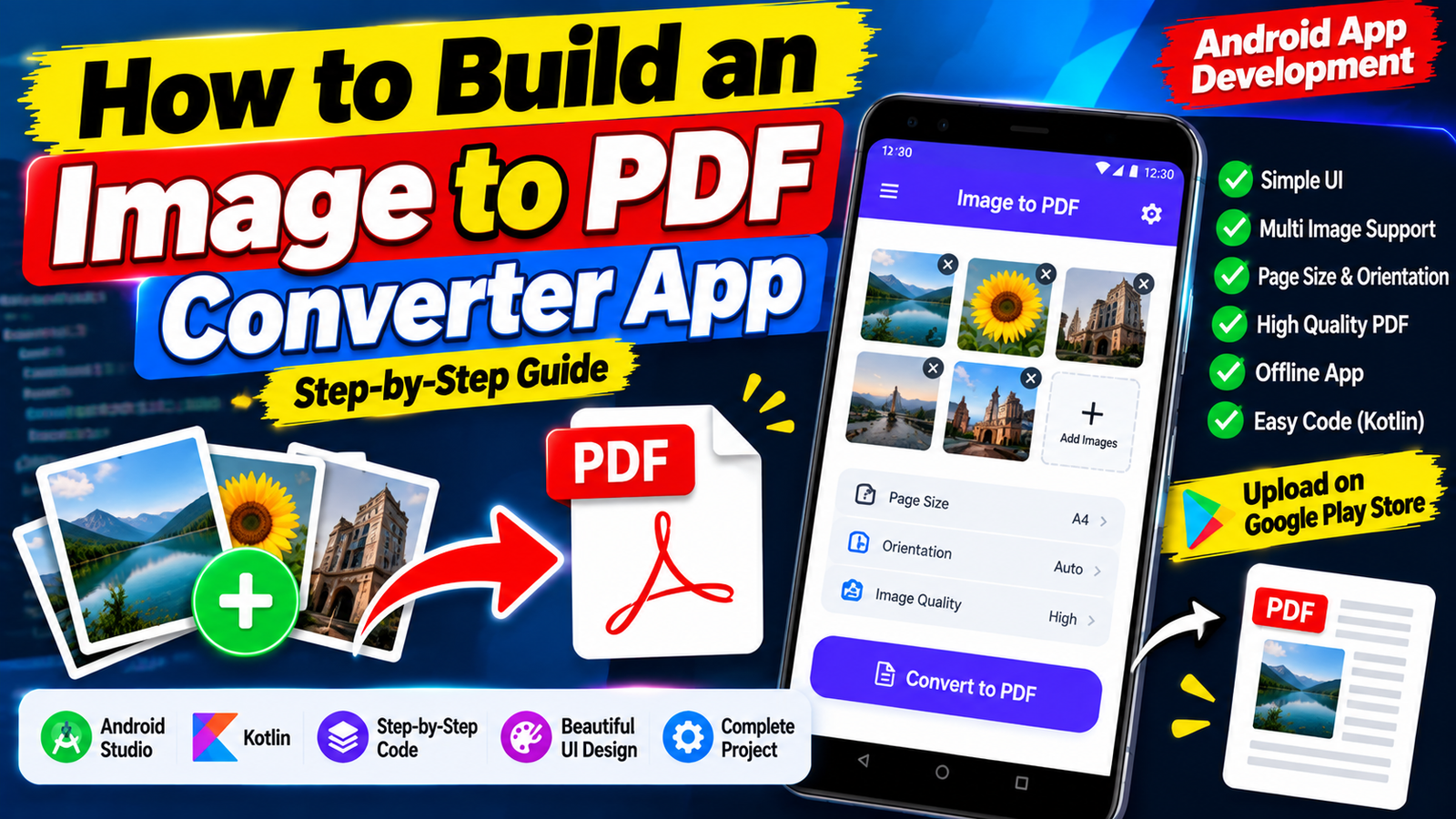
Building an Image to PDF app is an ideal project to master Android bitmap handling, file storage APIs, and clean UI architecture. Start by prototyping your image picker and PDF rendering engine, polish your UI layouts, and manage your Play Console closed testing track with professional discipline to launch your mobile app successfully.
Building a utility app that converts images to PDF files is one of the most profitable, practical, and highly demanded projects for mobile app developers. Millions of users daily need to convert photos of receipts, physical documents, ID cards, and notes into lightweight, standardized PDF files for sharing via email or cloud storage.
Whether you want to build a lightweight Android app using Kotlin and Jetpack Compose or cross-platform tools like Flutter or React Native, this step-by-step developer guide will walk you through the core app architecture, image-processing logic, file saving routines, and how to navigate Google Play Console’s strict publishing rules to ensure a successful store release.
Core Features of a Production-Grade Image to PDF App
A basic image-to-PDF converter is easy to build, but a top-ranking, high-utility mobile app requires specific features that provide real value to users:
Multi-Image Selection: Allows users to pick multiple images simultaneously from their device gallery or camera.
Image Reordering & Rotation: Lets users drag and drop thumbnails to adjust page order, rotate crooked scans, or crop unwanted borders before compiling.
Image Compression Options: Offers low, medium, and high PDF quality settings to compress large bitmap files and reduce the output file size.
PDF Page Margin & Orientation Controls: Allows users to set page layouts (A4, Letter, Auto-fit) with custom margins.
Instant PDF Preview & Fast File Sharing: Built-in PDF rendering using native APIs so users can inspect the document and share it via WhatsApp, Drive, or email.
Step 1: Choosing Your Technical Stack & Native APIs
For Android development, you do not need expensive third-party PDF libraries. You can build this functionality natively using Android's built-in PdfDocument API:
UI Framework: Jetpack Compose (Modern declarative UI) or standard XML Layouts.
Image Picker: Android’s native Photo Picker API or
ActivityResultContracts.GetMultipleContents()to select gallery images securely without requesting broad storage permissions.PDF Engine: Android's native
android.graphics.pdf.PdfDocumentclass combined withCanvasto draw bitmaps directly onto PDF pages.Image Processing:
BitmapFactoryandPaintclasses to scale, rotate, and compress images smoothly before rendering.
Step 2: Under the Hood — How the Conversion Code Works
Building an Image-to-PDF app follows a simple 4-step programmatic pipeline:
[User Selects Images] ➔ [Decode Bitmaps & Scale] ➔ [Draw Bitmaps to Canvas Pages] ➔ [Write PDF File to Storage]
1. Handling Image Selection
Using Jetpack Compose and Kotlin, trigger the system photo picker to collect selected image URIs cleanly without prompting invasive permissions:
Kotlin
val launcher = rememberLauncherForActivityResult(
    contract = ActivityResultContracts.GetMultipleContents()
) { uris ->
    viewModel.addImages(uris)
}
2. Rendering Bitmaps onto PDF Pages
Loop through the list of image URIs, decode each stream into a bitmap, calculate aspect ratios, start a page, draw the bitmap on the canvas, and finish the page:
Kotlin
fun convertImagesToPdf(context: Context, imageUris: List<Uri>, outputFile: File) {
    val pdfDocument = PdfDocument()

    imageUris.forEachIndexed { index, uri ->
        val inputStream = context.contentResolver.openInputStream(uri)
        val originalBitmap = BitmapFactory.decodeStream(inputStream)

        // Define page dimensions matching the image aspect ratio
        val pageInfo = PdfDocument.PageInfo.Builder(
            originalBitmap.width,
            originalBitmap.height,
            index + 1
        ).create()

        val page = pdfDocument.startPage(pageInfo)
        val canvas = page.canvas

        // Draw the image on page canvas
        canvas.drawBitmap(originalBitmap, 0f, 0f, null)
        pdfDocument.finishPage(page)

        inputStream?.close()
    }

    // Save the PDF document to local storage
    FileOutputStream(outputFile).use { out ->
        pdfDocument.writeTo(out)
    }
    pdfDocument.close()
}
Step 3: Monetization Strategies for Utility Apps
Utility tools like Image to PDF converters offer simple monetization potential:
In-App Advertisements (Google AdMob): Display subtle banner ads at the bottom of the main gallery screen, or show rewarded video ads when users convert more than 10 pages at once.
Freemium Upgrade (In-App Purchases / Subscriptions): Keep basic conversions free, but charge a one-time fee or monthly subscription for premium features like OCR text extraction, custom watermarks, password protection, and batch processing.
Step 4: The Google Play Publishing Hurdle
Building your converter app is only half the battle. Launching your utility app on the Google Play Store requires navigating Google's strict pre-launch requirements.
If you are publishing under a Personal Developer Account created after November 2023, Google will not allow you to publish directly to Production. You must complete the mandatory Closed Testing Track.
[Upload Android App Bundle (.aab)] ➔ [Closed Testing Track: 12+ Testers for 14 Days] ➔ [Production Access Questionnaire] ➔ [Live Store Release]
The Non-Negotiable Closed Testing Rules:
Recruit at least 12 verified testers.
Keep them opted-in and testing for 14 consecutive, uninterrupted days.
Submit a detailed 10-question Production Access Questionnaire demonstrating real user engagement and bug fixes.
Why Closed Testing Tracks Get Rejected (And How to Fix It)
Many independent utility developers build a great converter app, wait out 14 days of testing with casual contacts, and then receive an automated rejection email from Google stating: "Your app requires more testing before it can be pushed to production".
Understanding why this happens helps you avoid launch delays:
Common Reasons for Rejection:
Inactive "Ghost" Testers: Friends download the app on Day 1, open it for 3 seconds, and never launch it again. Google tracks background telemetry via Play Services. If users remain completely inactive, Google flags the data as artificial.
Mid-Cycle Uninstalls: If a tester deletes your app on Day 10 to clear phone storage, your active count drops below 12. Your 14-day consecutive streak breaks, resetting the timer back to Day 1.
Emulator Usage: Free exchange groups often attempt to use desktop emulators to simulate installs. Google detects virtual device signatures effortlessly, triggering policy warnings.
Vague Questionnaire Responses: Answering questionnaire fields with generic phrases like "No bugs were found, app works fine" signals to manual reviewers that no genuine quality testing occurred.
The Solution: Deploy Managed Professional Closed Testing
To eliminate the risk of a 14-day reset loop and ensure your Image to PDF app passes Google's production review on your very first try, the safest approach is to leverage a managed professional closed testing platform like inTesters.
Instead of chasing down unreliable contacts or dealing with casual forum swaps, an enterprise testing service provides a secure, managed testing environment:
Guaranteed 14-Day Track Stability: Provides a safety buffer of 20+ verified testers over the mandatory minimum of 12, ensuring your active user count never drops mid-cycle.
100% Real Physical Android Hardware: Vetted testers evaluate your PDF conversion speeds, image scaling, and UI layouts across real smartphones (Samsung, Google Pixel, Xiaomi, OnePlus, etc.)—never emulators.
Deep User Telemetry: Testers launch your app daily, test file conversions, select images, and interact for 2 to 3 minutes per session, generating the exact telemetry Google looks for.
AI-Verified Proof Logs: Automated screenshot verification confirms that real human testing occurs every single day.
Production Questionnaire Mapping: Receive detailed bug reports, device charts, and feedback logs to help you complete Google's 10-question Production Access Questionnaire accurately.
Competitive Analysis: What Other PDF App Tutorials Miss
A review of existing PDF app development tutorials highlights several key gaps that developers often overlook:
Out-of-Memory (OOM) Errors on Large Images: Loading ten 1080p or 4K photos directly into memory will crash your app. Always use
BitmapFactory.OptionswithinSampleSizeto downsample high-resolution images before rendering.Scoped Storage Permissions: Since Android 11 (API 30), broad file access permissions (
MANAGE_EXTERNAL_STORAGE) are heavily restricted by Google Play. Use the MediaStore API or Storage Access Framework (SAF) to save output PDFs directly to the publicDocumentsorDownloaddirectory without triggering policy violations.Threading & UI Smoothness: Never generate PDFs on the main UI thread. Always execute bitmap scaling and PDF writing tasks on background coroutines (
Dispatchers.IO) to keep your app user interface smooth and responsive.
About the Author

Pratyush Kumar Thakur
Expert software tester and contributor to the community. Passionate about AI, automation, and user experience.