
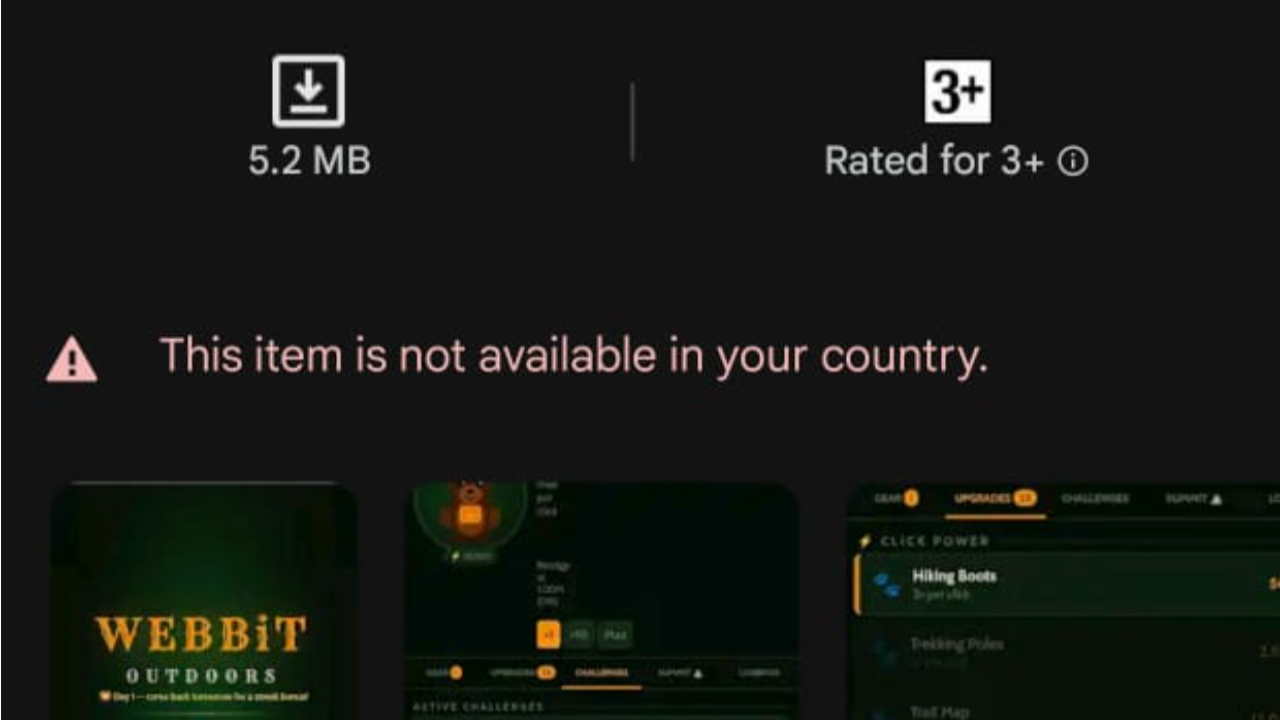
For Android developers, especially those rushing to complete the mandatory 14-day closed testing requirement with 12 testers, this error is an absolute project stopper. If your testers cannot download the app, your 14-day countdown clock cannot start, and your launch timeline stalls.
Few things are more frustrating than spending hours setting up your Google Play Console closed testing track, sending out the opt-in links to your recruited testers, and immediately getting a flood of messages saying:
"This item isn’t available in your country." or "App not available in your region."
Fortunately, this is not an app bug or a permanent Google penalty. It is a simple, common configuration mismatch inside your Play Console.
This ultimate guide breaks down exactly how to fix the "app is not available in your country" error during the testing phase, why it happens, and how to correctly configure your country and region settings to get your testers onboarded instantly.
Why Do Testers See the "App Not Available" Error?
When you create a new app on the Google Play Console, Google defaults its availability settings to highly restrictive parameters to prevent unoptimized apps from accidentally leaking to the global public.
This error comes up because there is a mismatch between three particular parts, not just one thing:
The App’s overall, global availability… meaning the whole set of countries where the app is legally permitted for distribution.
The Track’s precise availability, like the countries that were actually assigned to your closed or open testing track.
And then the Tester’s Google account region, basically the home country tied to your tester’s Google Play billing profile.
If a tester is physically located in India or the UK, but their Google Play Account billing address is still registered to the US, they will be blocked unless both countries are explicitly active on your testing track.
Step-by-Step Guide: How to Add All Countries in Closed Testing
To completely zap those regional issues and make sure testers from any kind of corner of the world can get your build, do this exact step by step walkthrough to open your track globally, like for real.
Step 1: Verify Main App Availability
Before you mess with your testing track, make sure the app isent like, globally blocked at the account level. You really have to confirm it first, before going any further. Otherwise it’s kind of pointless, because the restriction stay put even if the track itself looks ok.
Log into the Google Play Console and select your application.
On the left-hand sidebar, scroll down to the Release section and click on Production.
Switch to the Countries/regions tab.
Ensure that the countries your testers reside in are listed as Active. If you want a global footprint, click Add countries/regions, check the top box to select all countries, and save.
Step 2: Configure the Closed Testing Track Geography
This is the step that fixes the testing error.
Navigate back to the left sidebar and click on Testing > Closed testing.
Locate the specific track you are using for your 14-day test (e.g., Alpha or your custom track) and click Manage track.
Look across the top tabs next to "Testers" and click on the Countries/regions tab.
Access Track Countries: Inside Manage Track.
Click on the Add countries/regions button on the right-side of the screen.
Select Global Distribution: Select All.
A pop-up list will appear showing all available nations. Check the master checkbox at the very top of the list to automatically select all countries and regions.
Save and Confirm: Apply Changes.
Click the blue Add countries/regions button at the bottom right of the pop-up window, then confirm the selection when prompted.
4.Submit for Review: Crucial Step.
Scroll to the bottom of the page or navigate to the Publishing overview and click Submit for review.
The Publishing Pitfall: Just saving the country changes inside your track, like that, does not make everything go live right away. The geographic updates have to pass through Google’s automated approval pipeline. Your testers will keep bumping into the “ not available ” error until the Publishing Overview label shifts from “Changes in review” into “Ready to publish” or “Live.” Usually this takes anywhere from a few hours to 24 hours, sometimes a bit more, but mostly within that window.
The Core Blueprint: Testing Track Availability vs. Main App Availability
Many developers make the mistake of adding countries to their Production track and assuming it applies to their Testing track. On the Play Console, each testing track manages its own geographic availability independently.
Main Store Presence
The Main Store Presence acts as the master list of countries where your app is allowed to exist on Google Play. Think of it as the foundation of your app's availability.
If a country is not enabled here, no testing track—including Closed Testing, Open Testing, or Production—can make the app available in that region. Before troubleshooting tester access issues, always verify that the required countries are enabled in your app's main store settings.
Closed Testing Track Configuration
Even if a country is enabled in your Main Store Presence, testers still won't be able to access your app unless that country is specifically included in your Closed Testing track.
This is where most developers encounter problems. The Closed Testing track has its own country settings, which define exactly where your Alpha or Private testing program is available. To avoid regional access issues, many developers choose to enable all countries during the testing phase.
Tester's Google Play Country
The final layer is the tester's own Google Play country setting. Every Google account is associated with a specific country or region, and Google checks this information before allowing access to a testing track.
For a tester to successfully join your closed testing program, their Google Play country must match one of the countries enabled in your active testing track. If there is a mismatch, the tester may see messages indicating that the app is unavailable or that they are not eligible to participate.
Troubleshooting Persistent "Not Available" Issues
If you have added all countries to your closed testing track, waited for the review to go live, and a tester still faces the error, the issue lies on the tester's side. Guide them through these three quick troubleshooting fixes:
1. Match Account Region, Not Physical Location
If your tester is an international student or traveler using a VPN, their physical IP address doesn't matter. Google Play checks the Payment Profile Country.
The Fix: Have the tester open their Play Store app, tap their profile icon > Settings > General > Account and device preferences. Under "Country and profiles", they can see which region their account is locked to. If that country isn't checked in your console, they cannot download it.
2. Clear the Google Play Store App Cache
The Google Play Store app aggressively caches regional data. Even after you update the console, the tester's phone might still read the old restriction.
The fix: tell the tester to long press the Play Store icon, then tap App Info, then go to Storage & Cache then choose Clear Cache, and also Force Stop the app. After that when they reopen the link, it should fetch the live, updated regional permissions.
3. Stick to the Web Opt-In URL
Directly searching for a closed-testing app name inside the Play Store app will always fail because the app is hidden from public indexing.
The Fix: Make sure your testers always use the "Join on the web" link that’s down at the bottom of the Testers tab, like, really always. They should open a web browser first and click "Accept Invitation" before they touch the download redirect button. If they skip that web step, it gets messy, so don’t let it happen.
Eliminate Onboarding Friction with Professional Testing
Chasing down a dozen remote testers, diagnosing their individual Google account regional settings, and guiding them through clearing their phone cache is an exhausting, time-consuming administrative headache. When you are on a tight development schedule, debugging your testers' devices takes precious hours away from refining your actual product.
If you want to completely bypass regional distribution errors and protect your 14-day testing timeline, the most efficient route is to utilize a professional closed testing service early in your lifecycle.
By leveraging a well known synchronized network of verified testers and perfectly tuned Android profiles across specific regions , you basically get zero onboarding friction. These professional testing networks prevent those annoying “not available” false starts in the region, keep your tester baseline steady, and they also deliver crisp user telemetry data—so you can sail through Google’s production review smoothly on your very first try.
About the Author

Pratyush Kumar Thakur
Expert software tester and contributor to the community. Passionate about AI, automation, and user experience.