
Not Finding App in your Country is Common Problem and can be solve easily!
You’ve spent weeks perfecting your Android app, meticulously configured your Google Play Console, and sent out the private opt-in links to your recruited testers to kick off your mandatory 14-day testing countdown. But instead of successful installations, your inbox fills up with a barrage of frustrating error screenshots from your testers stating:
“This item isn't available in your country.” or “This app is not available in your region.”
For Android developers on tight launch timelines, this error can feel like an absolute project stopper. If your testers cannot download your app bundle (.aab), your 14-day clock cannot start.
The good news? Your app isn't broken, and your account hasn't been penalized. This issue is a common regional permission mismatch inside the Google Play Console. This guide breaks down exactly why this error happens and provides a step-by-step walkthrough to resolve it permanently so your testers can download your app.
The Root Cause: Why Are Testers Seeing This Error?
When you create a new application, Google defaults its distribution settings to highly restrictive boundaries to prevent unreleased builds from leaking to the global public. The error triggers because of a structural gap between how Google handles your Track Distribution Settings and your Tester’s Google Account Region.
Many developers mistakenly believe that adding countries to their Production track handles geographic availability across the entire console. This is a critical misconception. On the Play Console, every testing track manages its geographic availability independently.
If your testers reside globally (or are using Google accounts registered to another region) and your specific Closed Testing track is locked down to a single default country, those users will be automatically blocked by Google's regional filter.
Step-by-Step: How to Fix Regional Restrictions in Play Console
To resolve this issue and open up your closed testing build to a global pool of users, follow this exact configuration sequence inside your dashboard:
Step 1: Open the Closed Track Settings
Log into your Google Play Console and select the application facing the issue.
Scroll down to the left-hand menu sidebar, locate the Testing section, and click on Closed testing.
Find your active testing track (usually labeled Alpha or your custom track name) and click the Manage track link on the right.
Step 2: Update the Track’s Countries and Regions
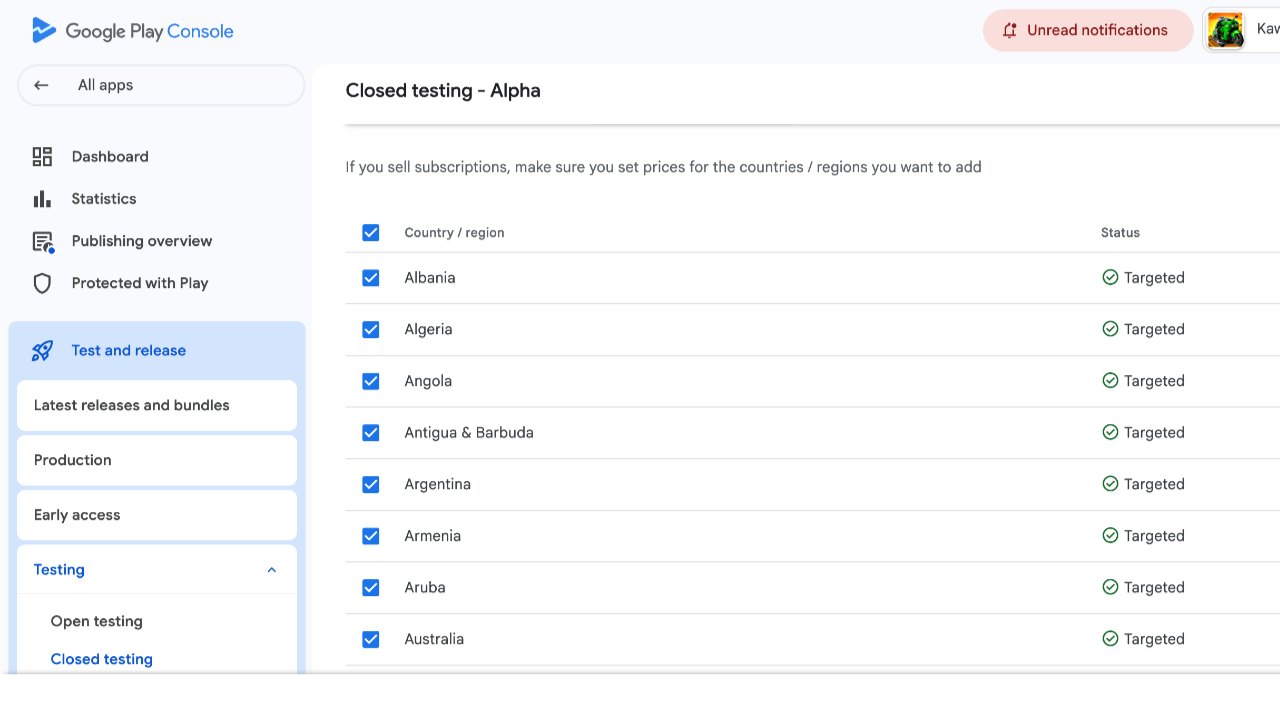
Look directly across the top menu options next to the "Testers" tab and click on the Countries/regions tab.
If you see that no countries are selected, or only your home country is active, click the Edit or Add countries/regions button.
A modal list displaying all nations will slide open. Check the master checkbox at the very top of the list to automatically highlight and select all countries and regions.
Click the blue Save or Add countries/regions confirmation button in the bottom right corner of the window.
Step 3: Send for Formal Review
Do not just close your browser window—saving the menu changes does not make them live instantly.
Navigate to your Publishing overview tab on the left-hand sidebar.
Locate your pending regional changes and click Submit for review.
The Waiting Window: Your updated geographic parameters must pass through Google's automated review pipeline. It typically takes 3 to 4 hours for the review to process. Once the status in your Publishing Overview changes to Live, the regional permissions update globally.
What to Do If the Error Persists After the Review Goes Live
If you have waited out the 3–4 hour review window, verified that all countries are marked active inside your closed track dashboard, and a tester still reports the "not available" message, the issue lies inside the cached memory of the tester's device.
The Google Play Store app aggressively caches old server restrictions to reduce background data usage. To force the device to read your live console parameters, instruct your testers to follow this quick fix:
Close the Google Play Store app completely.
Go to the device Settings > Apps (or Apps & Notifications).
Scroll down and tap on Google Play Store.
Select Storage & Cache, then tap Clear Cache (and Clear Data if needed).
Tap Force Stop to kill any active background sessions of the store app.
Once your testers reopen your private "Join on the web" or "Join on Android" opt-in link, their device will fetch the freshly updated console permissions. They will now be 100% able to download your app and begin the 14-day testing countdown.
Eliminate Onboarding Friction with Managed Professional Testing
Debugging your testing track, diagnosing individual account regional parameters, and walking internet strangers through clearing their phone cache is an exhausting administrative burden. When you're managing a major development launch, chasing down unverified contacts takes away valuable focus from polishing your product.
If you want to protect your launch timeline from regional errors, the most effective approach is to utilize a managed professional closed testing platform like inTesters.
Partnering with an expert team of verified testers who use perfectly configured Android profiles across designated physical devices completely eliminates regional onboarding friction. Professional testing networks keep your tester baseline perfectly stable, bypass emulator tracking flags, and generate clean user data—helping you pass Google's production review smoothly on your very first try.
About the Author

Pratyush Kumar Thakur
Expert software tester and contributor to the community. Passionate about AI, automation, and user experience.