
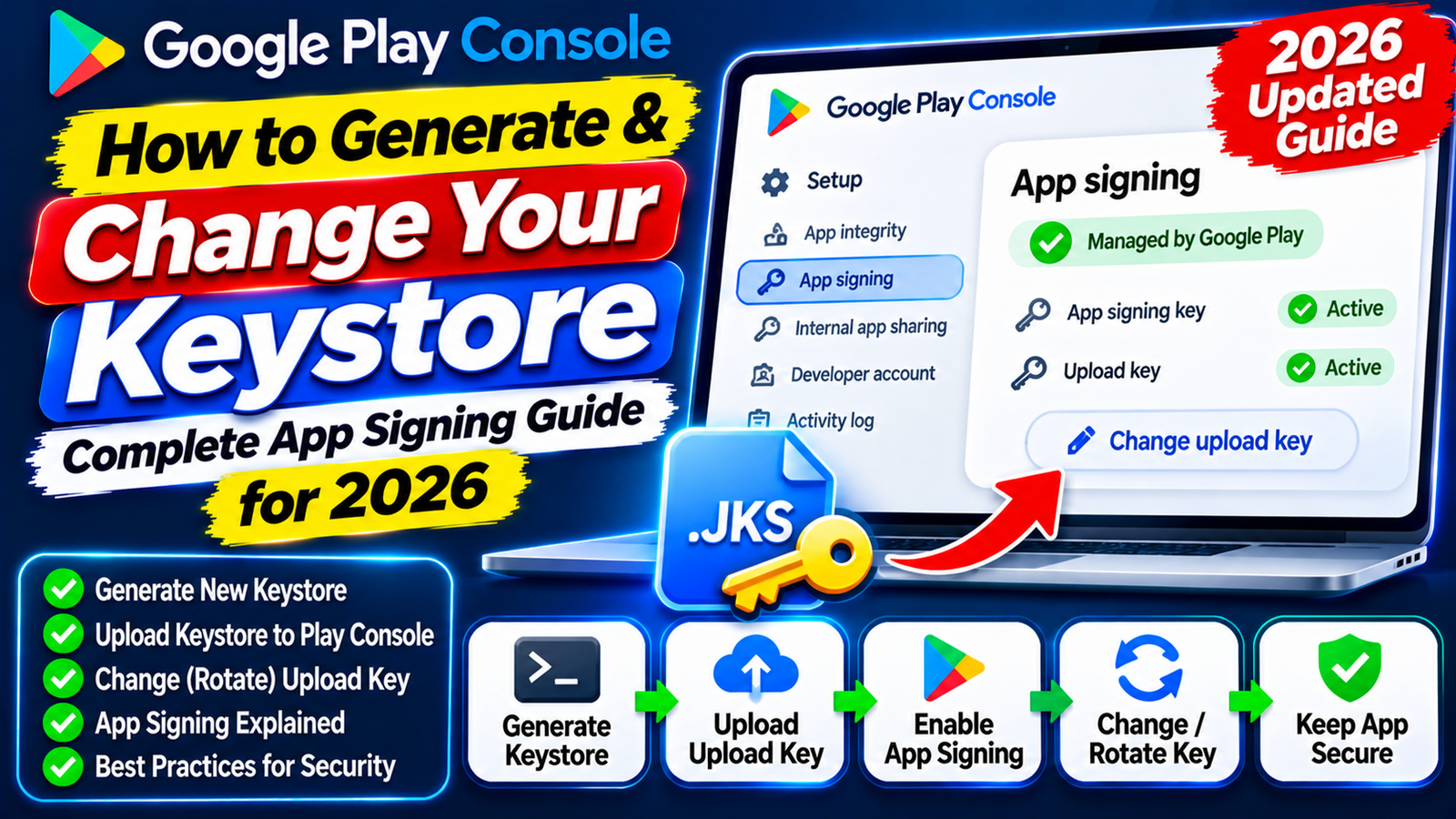
This complete, step-by-step developer guide explains how Play App Signing works, how to generate a brand-new keystore, how to reset or change your key in the Play Console, how to configure API fingerprints, and how to clear Google's mandatory pre-launch testing hurdles without getting rejected.
Losing your Android keystore file or forgetting your signing password used to be a developer’s worst nightmare. In the early days of Android, if your laptop crashed without a backup of your .jks file, you could never push an update to your app again.
Today, Google Play App Signing solves that problem. By separating the key you use to upload your code from the key Google uses to sign the final APK delivered to users, Google allows you to safely reset your local keystore if it is ever lost or compromised. Even better, new apps are now enrolled in quantum-ready hybrid signing to protect against future cryptographic threats on Android 17 and above.
1. Upload Key vs. App Signing Key: Understanding the Difference
When you use Play App Signing, your app relies on two separate cryptographic keys. Understanding which key does what prevents major mistakes when configuring APIs or updating your app.
The Upload Key (Held by You)
Format & Spec: Stored locally inside a Java Keystore file (
.jksor.keystore) using an RSA key of at least 2048 bits.Purpose: You use this key to sign your Android App Bundle (
.aab) before uploading it to the Play Console. Google uses it solely to verify that the upload genuinely came from you.Can It Be Reset? Yes. If your upload keystore is lost, corrupted, or stolen, you can generate a new one and ask Google to reset it without affecting your live users.
The App Signing Key (Held by Google Play)
Format & Spec: Stored inside Google's secure Key Management Service (KMS) and paired with public certificates (
.deror.pem). Google-generated classical keys use RSA 4096-bit encryption.Purpose: Google strips your upload signature and re-signs the final optimized APKs with this key before delivering them to users' phones.
Quantum-Ready Hybrid Signing (Android 17+): For newly created apps, Google automatically enables hybrid signing using APK Signature Scheme v3.2. This combines a classical RSA 4096-bit key with a post-quantum ML-DSA-65 key for Android 17 (API level 37) and newer devices, alongside a separate classical key for older Android devices.
Can It Be Changed? For new apps, you can choose your own app signing key before publishing a release to Open Testing or Production. Once live, you can also request an annual cryptographic Key Upgrade for installs on Android 17 and above.
2. How to Generate a New Keystore (Android Studio & Command Line)
Whether you are launching a brand-new app or replacing a lost upload key, you first need to generate a local keystore file.
Method A: Generate a Keystore in Android Studio (Visual Method)
Open your project in Android Studio.
In the top menu bar, click Build > Generate Signed App Bundle / APK.
Select Android App Bundle and click Next.
Under the Key store path field, click Create new...
Choose a safe folder path (outside your project's public Git repository!) and name your file (for example,
upload-keystore.jks).Set a strong Key store password, enter a Key alias (e.g.,
upload), and set a Key password.Fill in at least one certificate field (such as your First and Last Name or Organization) and click OK.
Method B: Generate a Keystore via Terminal (keytool)
If you prefer using the command line on Windows, macOS, or Linux, run the standard Java keytool command:
Bash
keytool -genkey -v -keystore upload-keystore.jks -keyalg RSA -keysize 2048 -validity 10000 -alias upload
Follow the terminal prompts to enter your name, organization, and passwords. Immediately back up your .jks file and passwords in a secure cloud vault or password manager.
3. How to Change Your App Signing Key (Before Launch)
When you create a new app in Play Console and upload your first .aab file, Google automatically enrolls your app in Play App Signing with a Google-generated key.
If you distribute your app across multiple third-party app stores and want to use your own unified signing key everywhere, you can change the app signing key before your app ever reaches Open Testing or Production:
Sign in to the Google Play Console as the Account Owner or an Admin.
Select your app and navigate to Protected with Play > Play Store protection > Manage Play app signing.
Under the App signing key section, click Change key.
Choose to either use the same key as another app in your developer account or export and upload your own private key using Google's Play Encrypt Private Key (PEPK) tool.
Click Save. (Note: Once you push a build to Open Testing or Production, this option locks permanently).
4. How to Reset a Lost or Compromised Upload Key
If you lose your .jks file or forget your password after your app is already published, do not panic. Your live users will not be affected. Follow these steps to replace your upload key:
Step 1: Generate a New Keystore & Export the .pem Certificate
Generate a fresh .jks file using the steps above, then run this command in your terminal to export its public certificate in .pem format:
Bash
keytool -export -rfc -keystore upload-keystore.jks -alias upload -file upload_certificate.pem
Step 2: Submit the Reset Request in Play Console
Log into the Google Play Console using the primary Account Owner email. (Standard Admin or Developer roles cannot see the reset button).
Open your app and go to Protected with Play > Play Store protection > Manage Play app signing.
Scroll down to the Upload key certificate section and click Request upload key reset.
Select your reason (e.g., "I lost my upload key").
Upload your newly exported
upload_certificate.pemfile and click Request.
Step 3: Wait 48 Hours for Activation
Google reviews the request and sends a confirmation email stating the exact date and time your new upload key becomes active—typically 48 hours after submission. Once active, you can sign and upload new .aab updates using your new keystore.
5. Critical Step: Registering Fingerprints with API Providers
Because Google re-signs your app with its own App Signing Key before users download it, third-party services like Google Sign-In, Firebase, Google Maps, and Facebook Login will fail if you only register your local upload key fingerprint.
Open Protected with Play > Play Store protection > Manage Play app signing in Play Console.
Scroll to the App signing key section and copy the SHA-1 and SHA-256 fingerprints.
Quantum-Ready Hybrid Note: If your new app uses quantum-ready hybrid signing, Play Console displays three distinct keys (your new classical key, your post-quantum ML-DSA key for Android 17+, and your classical key for Android 16 and below). Make sure you copy and register all listed fingerprints in your Firebase or Google Cloud Console—and update your
assetlinks.jsonfile if you use Android App Links.
6. Clearing the Next Launch Hurdle: Closed Testing Rejections
Setting up your keystore and Play App Signing cleanly gets your app bundle uploaded, but if you are publishing under a Personal Developer Account created after November 13, 2023, Google blocks public release until you clear the mandatory 14-day closed testing requirement.
Before unlocking Production access, you must recruit at least 12 verified testers who keep your app installed and actively test it for 14 consecutive, uninterrupted days.
Why DIY & Free Closed Testing Tracks Get Rejected
Many developers generate their keystore, upload their bundle to Closed Testing, invite 12 friends or swap partners from social media, wait two weeks, and receive a rejection notice stating: "Your app requires more testing before it can be pushed to production."
This happens due to four common mistakes:
Inactive "Ghost" Testers: Casual swap partners install your app on Day 1, open it for 3 seconds, and never launch it again. Google Play Services evaluates session length and screen interactions; shallow opens flag your test track as artificial.
Mid-Cycle Uninstalls: If a single tester uninstalls your app on Day 10, your active count drops below 12. Your 14-day consecutive streak breaks, resetting your countdown timer back to Day 1.
Emulator Footprints: Free install-swap groups often use desktop emulators. Google detects virtual device signatures effortlessly, risking policy flags on your account.
Vague Questionnaire Responses: Answering the 10-question Production Access Questionnaire with short lines like "No bugs found, app works great" signals to reviewers that no genuine quality assurance occurred.
The Solution: Deploy Managed Professional Testing
To avoid getting stuck in a 14-day reset loop and ensure your app unlocks Production access on your very first attempt, the smartest strategy is to use a managed professional closed testing platform like inTesters.
Instead of chasing unreliable contacts, an enterprise testing service provides:
Guaranteed 14-Day Track Stability: Assigns 20 to 25 verified human testers across 16 continuous days, maintaining a strong safety buffer above Google’s 12-tester minimum.
100% Real Physical Android Devices: Vetted testers evaluate your signed app bundle on real smartphones (Samsung, Google Pixel, Xiaomi, OnePlus) across diverse Android versions—never emulators.
Authentic Deep User Telemetry: Testers launch your app daily, navigate submenus, test core features, and interact for 2 to 3 minutes per session, generating the clean engagement telemetry Google expects.
AI-Verified Proof Logs & Questionnaire Support: Receive daily visual verification logs, crash reports, and pre-mapped feedback summaries to complete Google’s 10-question Production Access Questionnaire accurately.
Competitive Analysis: What Other Keystore Guides Miss
A review of top-ranking Android signing tutorials reveals several technical traps that developers frequently miss:
Google Play Integrity & R8 Obfuscation: Never upload an un-obfuscated release bundle. Enable R8 code shrinking (
minifyEnabled true) in Gradle and let Android Studio bundle themapping.txtfile inside your.aabso crash stack traces remain readable in Play Console.Distributing Outside Google Play: If you want to share your app on your own website or third-party app stores without signature conflicts, do not sign an APK locally with your upload key. Instead, go to Test and release > Latest releases and bundles, select your bundle, and download the signed, universal APK generated by Google Play so both versions share the exact same signature.
Never Push Keystores to GitHub: Accidentally committing your
.jksfile orkeystore.propertiesto a public repository exposes your upload key to bots. Always add*.jksand*.keystoreto your.gitignorefile before your very first commit.
About the Author

Pratyush Kumar Thakur
Expert software tester and contributor to the community. Passionate about AI, automation, and user experience.