
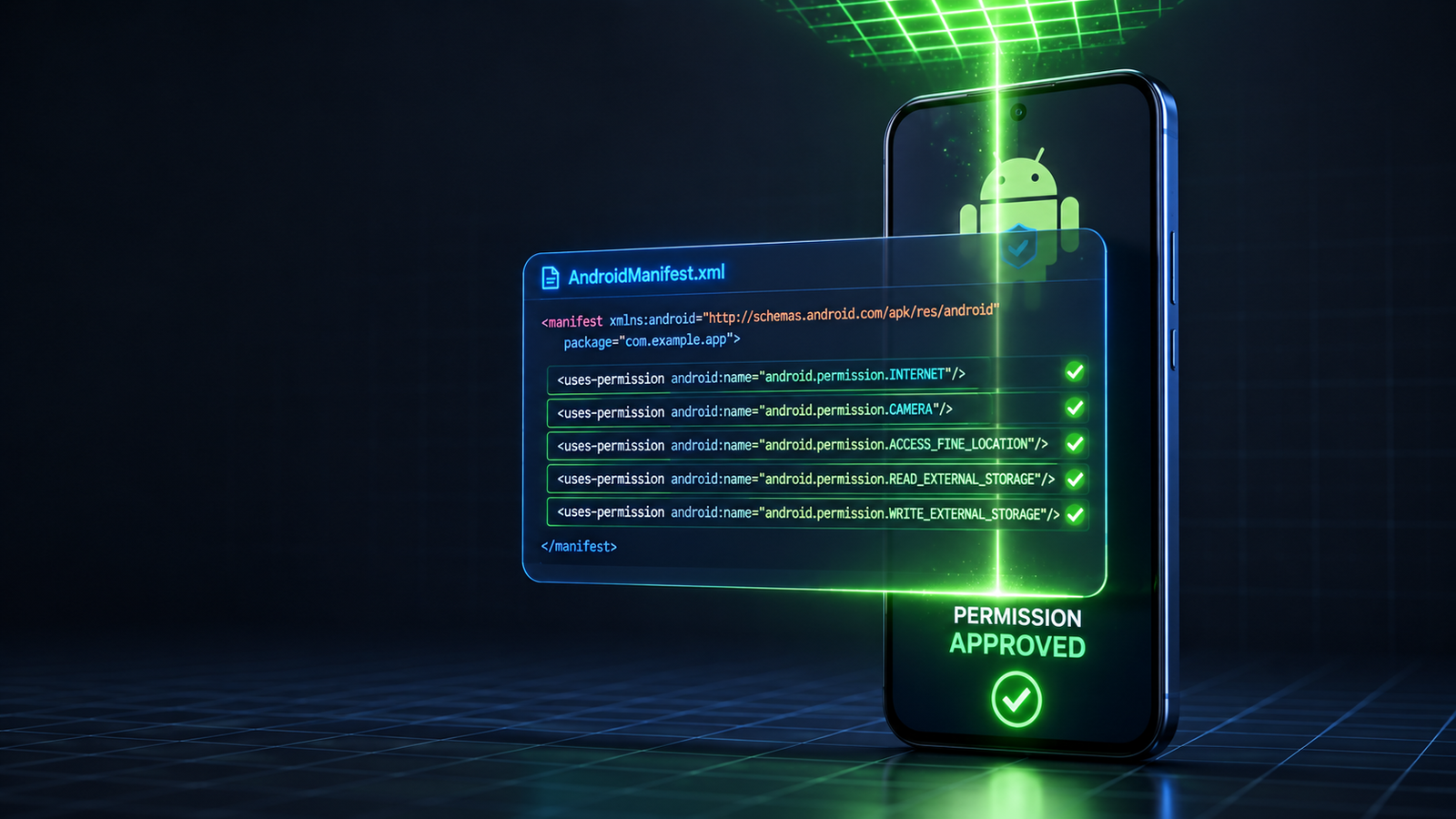
Google has dramatically overhauled its data privacy and user tracking rules. If your application triggers sensitive hardware permissions without an explicit, approved explanation inside the dashboard, your entire build will be blocked by an immediate policy violation, permanently freezing your launch pipeline.
When compiling an Android application, configuring the hardware and data permissions inside your AndroidManifest.xml file is standard procedure. But here is an industry reality check: the moment you upload your Android App Bundle (.aab) to the Google Play Console, those backend permissions become strict legal and policy liabilities.
This comprehensive blueprint breaks down exactly how to list permissions on the Google Play Console, details the tiers of Android permissions, explains how to handle runtime user prompts, and provides a strategy to clear data safety forms flawlessly.
1. The Anatomy of Android Permissions: How Many Exist?
Android organizes permissions into thousands of unique manifest strings, but Google Play groups them into three distinct, risk-based categories. Knowing which tier your permissions fall into determines your level of console scrutiny:
Normal Permissions (Auto-Granted): These cover basic, low-risk operational requests like accessing the internet (
INTERNET), checking network status (ACCESS_NETWORK_STATE), or triggering device vibrations (VIBRATE). Google grants these automatically at installation. They require zero declaration paperwork inside the console.Dangerous / Runtime Permissions: These directly access personal user data or critical device hardware—including fine location (
ACCESS_FINE_LOCATION), the device camera (CAMERA), contacts, or microphone inputs.Restricted / High-Risk Permissions: These are highly policed permission trees, such as reading broad SMS history (
READ_SMS), tracking full background location, or intercepting device call logs. To list these, you must file a formal Permissions Declaration Form and prove to Google's human review board that your app cannot function without this specific data tree.
2. The Runtime Prompt Mandate: Asking the User in Real-Time
It is no longer enough to simply declare a hardware permission in your source code. Google enforces a strict Incremental Contextual Prompt Policy.
The Compliance Rule: You are legally prohibited from triggering a barrage of hardware permission pop-ups the exact second a user launches your app for the first time.
You must request permissions in context. For example, if your app contains a profile section and a mapping section, you must only prompt the user for camera access when they actively click "Upload Profile Photo," and only request location tracking when they click "Open Local Map."
Furthermore, if a permission accesses sensitive data unexpectedly in the background, you must display a custom, prominent In-App Disclosure Screen before the system prompt appears, explaining exactly how that data will be utilized and securing the user's explicit affirmative consent.
3. Why Telling Play Console About Permissions is Compulsory
When your app bundle is compiled, Google’s automated system scans your manifest binary files. If a high-risk or sensitive permission string is caught, an active policy alert triggers inside your dashboard under the App Content panel.
You cannot publish any storefront changes, adjust pricing structures, or rollout updates until you resolve this alert. Google demands this data to ensure transparency on the public Play Store page, allowing consumers to review exactly what data points an app intercepts before clicking download.
4. The Data Safety Bypass: What You Can Skip vs. What is Non-Negotiable
A common point of confusion for indie developers is the difference between skipping a formal permission declaration and completing the master Data Safety Form.
[Normal Permissions] ➔ Bypass Declaration Form ➔ MUST Declare in Data Safety Form
[Sensitive Permissions] ➔ Complete Permissions Form + Provide Video Demo ➔ MUST Declare in Data Safety Form
Can You Skip the Permissions Declaration Form?
Yes, but only if your app handles core tasks through modern system alternatives instead of requesting raw, low-level hardware access. For example:
The Photo Picker Loophole: Instead of requesting broad read/write storage permissions (
READ_EXTERNAL_STORAGE) to let a user choose an image, use the native Android Photo Picker API. Because the OS handles the image handoff securely, you can completely skip declaring storage permissions in your manifest.The Contact Picker Loophole: Rather than requesting broad access to a user's entire contact database, deploy the Android Contact Picker. This lets users safely select a single contact, completely bypassing Google’s restricted contact permissions audit.
The Non-Negotiable Core: The Data Safety Form
Even if you use clean API pickers and don't declare a single "Dangerous" permission string in your code manifest, you can never skip the Data Safety Form.
If your app collects an email address, transmits anonymous device hardware IDs to an analytics provider (like Firebase), or tracks network behavior, you must explicitly state it inside the App Content > Data Safety pipeline. You must document whether that data is securely encrypted in transit, whether users can request data deletion, and whether it's shared with third-party networks. Mismatching your actual SDK tracking behavior with your Data Safety form answers will cause an instant app suspension.
Steps to view your submitted Data Safety answers
Open Google Play Console.
Select your app.
Go to Policy and programs → App content.
Find Data safety.
Click Manage.
Instead of starting a new form, it should open your existing responses.
You can go through each section to see:
What data you declared as collected.
Whether you declared data as shared.
Security practices.
Data deletion.
The purposes for collecting each type of data.
Nothing changes unless you click Save and Submit, so it's safe to review your answers.
5. How to Set Up and Declare Permissions Inside the Console
To list a sensitive or restricted permission properly without triggering an immediate rejection loop, follow this specific operational workflow:
Step 1: Access the Permissions Declaration Interface
Open your Play Console, scroll down to the bottom of the left sidebar menu, and select Policy > App content. Locate the Permissions Declaration Form section and click Start.
Step 2: Define Your App's Core Functionality
Select your app's explicit use case from Google's drop-down list of approved use cases. You must explicitly check the boxes indicating that this permission handles features central to your app's core utility as advertised on your public store listing.
Step 3: Provide a Video Demonstration Link
Google’s manual review board will not guess how your app uses a high-risk permission. You are required to supply a functional video demonstration link (a private YouTube URL or a cloud storage link to an .mp4 file) showing a user launching your app, encountering your in-app disclosure screen, accepting the runtime prompt, and actively utilizing the feature powered by that permission.
Web Apps & PWA Wrappers: The Chrome Camera Prompt
If you are publishing a web app or a Trusted Web Activity (TWA) container, you might notice a unique behavior: your app doesn't ask for a raw native permission directly; instead, a system prompt appears asking to "Allow Chrome to take pictures and record video."
Is this acceptable for Google Play review? Yes, it is completely normal.
Because your app runs inside an optimized browser container, it uses web-level APIs to request hardware. If the user has already granted system-level camera access to Google Chrome on their phone, your web app accesses the camera instantly without showing an extra Android prompt. If Chrome doesn't have system permission, Android intercepts the web request and triggers the Chrome browser prompt. Google Play's manual reviewers deal with web app architectures daily and will not reject your build for this expected behavior.
The Master Checklist: Permission Forms vs. Data Safety Disclosures
Do not confuse Permission Declarations with the Data Safety Form. The Data Safety Form is mandatory for almost all apps to disclose what user data is processed. Conversely, an Official Permission Declaration Form is a strict, separate quality gate required only for specific restricted or high-risk permissions.
Not every Android permission requires additional approval from Google Play. Many common permissions only need to be requested from the user at runtime, while others require developers to complete special declaration forms in the Google Play Console.
Internet, Network Status, Bluetooth, Wi-Fi, Vibration, Camera, and Notifications are considered standard permissions. These do not require a separate declaration in Google Play Console. However, permissions such as the Camera and Notifications still require user consent through Android's runtime permission prompts before your app can access them.
Microphone also doesn't require a special declaration form. However, if your app collects or uploads audio recordings to your servers, you must accurately disclose this in your app's Data Safety section on Google Play.
Foreground Location is a special case. Although it doesn't always require a declaration form, Google expects developers to request location access only when it's genuinely needed. Whenever possible, using Android's newer privacy-friendly location features is recommended instead of requesting continuous location access.
Some permissions are classified as restricted permissions and require additional review by Google. These include Contacts (READ_CONTACTS), Background Location, SMS and Call Logs, Accessibility Services, All Files Access (MANAGE_EXTERNAL_STORAGE), and VPN Service. If your app requests any of these permissions, you'll need to complete the appropriate declaration forms in Google Play Console and clearly explain why the permission is essential to your app's core functionality. In many cases, Google also recommends using privacy-friendly alternatives, such as the Android Contact Picker instead of requesting full access to a user's contacts.
Before requesting any permission, ask yourself a simple question: "Is this permission essential for my app's primary purpose?" If the answer is no, it's usually better to remove it. Requesting only the permissions your app genuinely needs not only improves user trust but also increases the likelihood of a smooth Google Play review.
Protect Your Publishing Timeline via Managed Professional Testing
If your application relies on alternative choice screens, complex data permissions, or native API pickers, verifying that your permission flows work flawlessly across the massive matrix of fragmented Android devices can easily stall your launch. Worse yet, if you are publishing under a new personal developer account, you face the massive hurdle of the mandatory 14-day closed testing track requirement (recruiting 12 active users for 14 straight days) before you can apply for live production access.
To completely eliminate the risk of an administrative reset loop and ensure your app meets Google's strict telemetry expectations on your very first try, smart developers shift the operational logistics to a managed professional closed testing platform like inTesters.
Rather than chasing down unreliable contacts on free forums who practice "open and close" routines that trigger automated engagement rejections, partnering with a professional testing framework provides a secure pool of 20+ real human testers using unique, physical Android smartphones. Vetted testers actively engage with your app interface for a minimum of 2–3 minutes per session, navigating layouts, triggering permission prompts, and validating that your data safety loops function safely without causing layout breaks or unexpected runtime crashes. This entirely removes the administrative stress of tracker drop-offs and provides you with pre-mapped technical logs to effortlessly pass Google's strict production access questionnaire.
For a complete overview of Google's strict privacy rules regarding user transparency, you can watch the Google Play Policy on Declared Permissions and In-App Disclosures. This official video directly outlines how to construct compliant in-app disclosure banners and map out your permission justifications inside the App Content dashboard without triggering automated enforcement flags.
About the Author

Pratyush Kumar Thakur
Expert software tester and contributor to the community. Passionate about AI, automation, and user experience.