
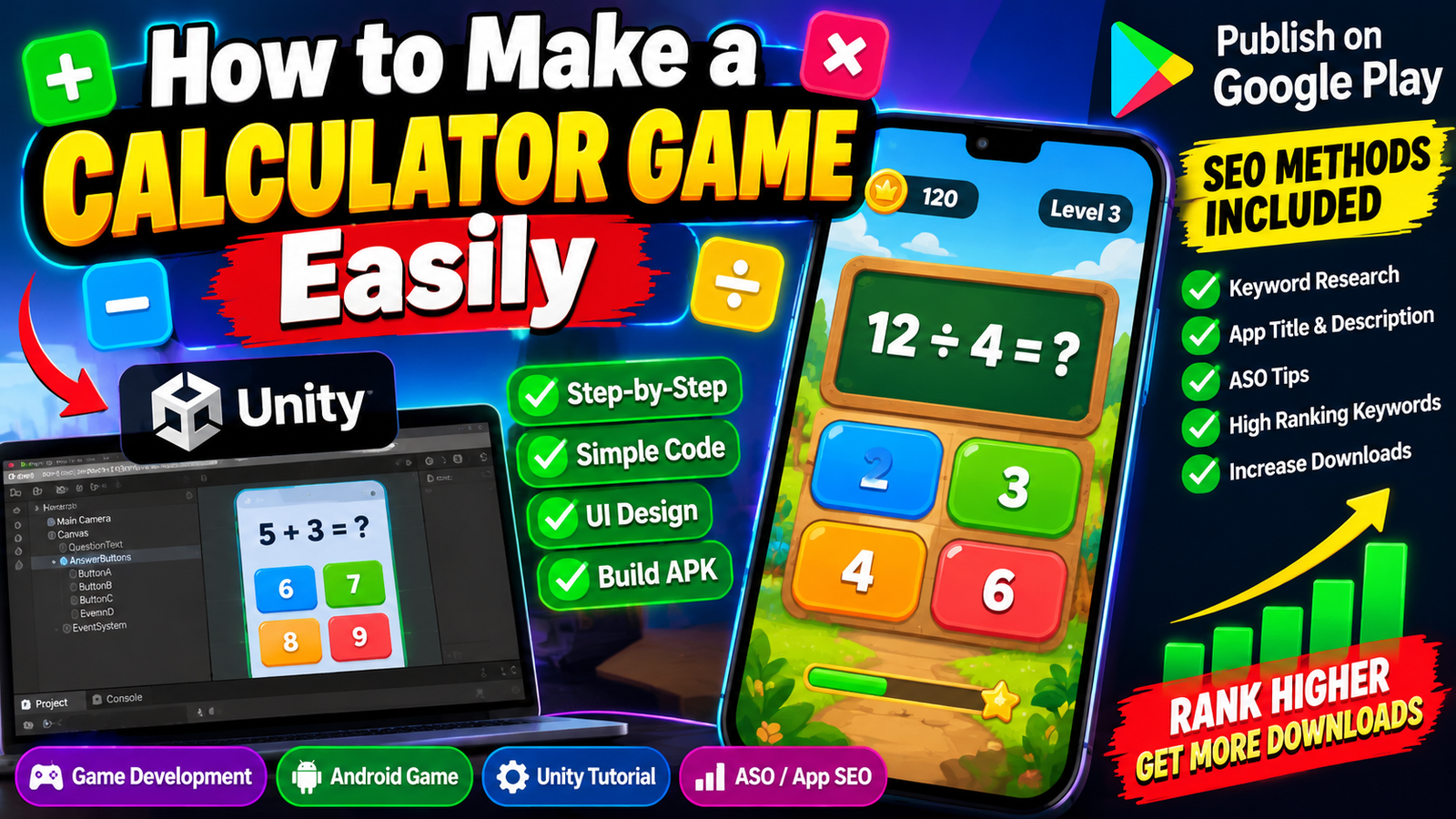
Building a calculator game is an excellent project to hone your coding skills, practice UI/UX design, and launch a real mobile app. Start by prototyping your core mechanics in HTML/JS, polish the game UI, package your app bundle for Android, and manage your Play Console closed testing track with professional discipline to launch your app smoothly.
Building a calculator game is one of the absolute best entry points for beginner game developers, UI designers, and indie programmers.
In a calculator game, standard mathematical buttons (like +, -, x, and /) are converted into creative puzzle mechanics. Players start with an initial number on a retro display and must reach a target number within a limited number of moves. Games like Calculator: The Game have proven that a simple grid of buttons paired with clever math logic can become a viral mobile hit with millions of downloads.
Whether you want to build a lightweight web puzzle or publish a full-featured Android title on the Google Play Store, this step-by-step guide will walk you through designing the game, writing clean code, deploying it across platforms, and navigating Google's strict publishing rules to launch your app successfully.
What Is a Calculator Game? (Core Mechanics)
At its core, a calculator puzzle game takes familiar arithmetic operations and adds tactical constraints. Instead of giving players infinite freedom, you give them a fixed set of buttons and a turn limit.
+------------------------------------+
|  MOVES: 3           GOAL: 10       |
|  +------------------------------+  |
|  |  CURRENT VALUE: 0            |  |
|  +------------------------------+  |
|                                    |
|  [ +2 ]     [ x3 ]     [ CLEAR ]   |
+------------------------------------+
Core Gameplay Mechanics:
Starting Value: The display begins at a baseline number (e.g.,
0).Target Goal: The target number the player must match (e.g.,
10).Move Counter: A limited number of button clicks allowed per stage (e.g.,
3 moves).Custom Function Buttons: Unique buttons that manipulate the current number:
Basic Math Operations:
+2,-5,x3,/2.Digit Manipulation:
Shift(moves digits left/right),Reverse(reverses12to21), orAppend(adds a digit to the end of the number, turning5into53).
Step 1: Design Your Core Gameplay Loop
Before writing code, sketch out your user interface (UI) and plan your puzzle logic.
Keep the UI Minimal: A retro digital LCD display at the top, a move counter, a goal display, and a grid of 4 to 6 clickable buttons.
Level Generation vs. Handcrafted Puzzles: Handcrafting your first 10 to 20 levels ensures a smooth difficulty curve. Introduce basic addition/multiplication buttons in early levels, then introduce advanced operators like
DeleteorConvertas players progress.
Step 2: Build a Calculator Game in HTML, CSS & JavaScript
You don't need a complex 3D engine to build your first calculator game. You can build a fully playable web version using basic HTML, CSS, and vanilla JavaScript in under an hour.
1. The Structure (HTML)
HTML
<!DOCTYPE html>
<html lang="en">
<head>
  <meta charset="UTF-8">
  <title>Calculator Puzzle Game</title>
  <link rel="stylesheet" href="style.css">
</head>
<body>
  <div class="calculator-card">
    <div class="display-panel">
      <div id="moves-left">Moves: 3</div>
      <div id="goal-val">Goal: 10</div>
      <div id="current-val">0</div>
    </div>
    <div class="keypad">
      <button onclick="applyOperation('add', 2)">+2</button>
      <button onclick="applyOperation('multiply', 3)">x3</button>
      <button onclick="resetLevel()">Clear</button>
    </div>
    <p id="game-status"></p>
  </div>
  <script src="script.js"></script>
</body>
</html>
2. The Styling (CSS)
CSS
body {
  background-color: #1a1a2e;
  font-family: 'Courier New', monospace;
  display: flex;
  justify-content: center;
  align-items: center;
  height: 100vh;
  margin: 0;
}

.calculator-card {
  background: #0f3460;
  padding: 25px;
  border-radius: 12px;
  box-shadow: 0 10px 25px rgba(0,0,0,0.5);
  text-align: center;
  width: 280px;
}

.display-panel {
  background: #e94560;
  color: #fff;
  padding: 15px;
  border-radius: 8px;
  font-size: 1.2rem;
  margin-bottom: 20px;
}

#current-val {
  font-size: 2.2rem;
  font-weight: bold;
  margin-top: 5px;
}

.keypad button {
  background: #16213e;
  color: #fff;
  border: 2px solid #e94560;
  padding: 12px 20px;
  margin: 5px;
  font-size: 1.1rem;
  border-radius: 6px;
  cursor: pointer;
  transition: 0.2s;
}

.keypad button:hover {
  background: #e94560;
}
3. The Logic (JavaScript)
JavaScript
let currentValue = 0;
let goalValue = 10;
let movesLeft = 3;

function applyOperation(op, operand) {
  if (movesLeft <= 0) return;

  if (op === 'add') {
    currentValue += operand;
  } else if (op === 'multiply') {
    currentValue *= operand;
  }

  movesLeft--;
  updateUI();
  checkGameState();
}

function updateUI() {
  document.getElementById('current-val').innerText = currentValue;
  document.getElementById('moves-left').innerText = `Moves: ${movesLeft}`;
}

function checkGameState() {
  const status = document.getElementById('game-status');
  if (currentValue === goalValue) {
    status.innerText = "Level Complete! 🎉";
    status.style.color = "#4E9F3D";
  } else if (movesLeft === 0) {
    status.innerText = "Out of moves! Try again.";
    status.style.color = "#D82148";
  }
}

function resetLevel() {
  currentValue = 0;
  movesLeft = 3;
  document.getElementById('game-status').innerText = "";
  updateUI();
}
Step 3: Package Your Game for Mobile (Android & Web)
Once your game prototype is working in the browser, you can package it as a native mobile app for Android devices using popular tools:
Unity Engine: Ideal if you want to add smooth animations, particle effects, sound synthesis, and polished UI transitions.
Flutter or React Native: Great choices if you prefer using lightweight cross-platform mobile frameworks.
WebView Wrapper / TWA: If you built a web app using HTML/JS, you can package it as a Progressive Web App (PWA) or Trusted Web Activity (TWA) to generate a signed Android App Bundle (
.aab) ready for the Google Play Store.
Step 4: Monetize Your Calculator Game
A simple puzzle game provides several clean monetization opportunities:
In-App Advertisements (AdMob): Display banner ads at the bottom of the screen or offer Rewarded Video Ads where players watch a short ad to earn hints or extra moves.
In-App Purchases (IAP): Sell premium level packs, dark/retro UI themes, or unlimited hint tokens.
Freemium / Premium Model: Offer the first 30 levels for free and allow players to unlock the remaining 100+ levels via a one-time purchase.
Step 5: Clearing Google Play's Publishing Hurdle
Building your calculator game is the easy part. Launching it on the Google Play Store requires navigating Google's strict pre-launch requirements.
If you are publishing your game under a personal developer account created after November 2023, Google will not allow you to publish directly to Production. You must complete the mandatory Closed Testing Track.
[Upload Android App Bundle (.aab)] ➔ [Closed Testing Track: 12+ Testers for 14 Days] ➔ [Production Access Questionnaire] ➔ [Live Store Release]
The Closed Testing Rules:
Recruit at least 12 verified testers.
Keep them opted-in and testing for 14 consecutive, uninterrupted days.
Submit a detailed 10-question Production Access Questionnaire demonstrating real user feedback and bug fixes.
Why Closed Testing Tracks Get Rejected (And How to Fix It)
Many indie game developers spend weeks building their game, wait out 14 days of testing with friends, and then receive a disappointing email from Google stating: "Your app requires more testing before it can be pushed to production."
Understanding why this happens is key to avoiding delays:
Common Reasons for Rejection:
Inactive "Ghost" Testers: Friends download the app on day 1, open it for 3 seconds, and never touch it again. Google tracks background telemetry via Play Services. If users remain completely inactive, Google flags the data as artificial.
Mid-Cycle Uninstalls: If a tester deletes your game on day 11 to free up phone storage, your active tester count drops below 12. Your 14-day consecutive streak breaks, resetting your clock back to day one.
Emulator Usage: Automated swap groups often use desktop emulators to manage multiple accounts. Google detects virtual device signatures effortlessly, triggering policy warnings.
Vague Questionnaire Responses: Answering questionnaire fields with generic phrases like "No bugs were found, the game is perfect" signals to reviewers that no genuine quality testing occurred.
The Solution: Managed Professional Closed Testing
To eliminate the risk of a 14-day reset loop and ensure your calculator game passes Google's production review on your very first try, the most strategic approach is to leverage a managed professional closed testing platform like inTesters.
Instead of chasing down unreliable contacts or dealing with casual forum swaps, a professional testing service provides a secure, managed testing environment:
Guaranteed 14-Day Track Stability: Provides a safety buffer of 20+ verified testers over the mandatory minimum of 12, ensuring your active user count never drops mid-cycle.
100% Real Physical Android Hardware: Vetted testers evaluate your game layouts across real smartphones (Samsung, Google Pixel, Xiaomi, OnePlus, etc.)—never emulators.
Deep User Telemetry: Testers launch your game daily, play through levels, test button responsiveness, and interact for 2 to 3 minutes per session, generating the exact telemetry Google looks for.
AI-Verified Proof Logs: Automated screenshot verification confirms that real human testing occurs every single day.
Production Questionnaire Mapping: Receive detailed bug reports, device charts, and feedback logs to help you complete Google's 10-question Production Access Questionnaire accurately.
Competitive Analysis: What Other Game Design Tutorials Miss
A review of existing calculator game tutorials highlights several key gaps that developers often overlook:
Neglecting Touch Input Padding: Standard desktop web buttons feel cramped on mobile touchscreens. Ensure your button hitboxes have at least
48x48dpof touch padding to prevent accidental clicks.Failing to Store Progress Locally: Always implement
localStorageorSharedPreferencesto save the player's highest completed level and unlocked themes automatically.Ignoring Edge Cases in Math Operations: Ensure your JavaScript or C# logic handles division by zero (
X / 0) and floating-point rounding errors gracefully without crashing the app display.
About the Author

Pratyush Kumar Thakur
Expert software tester and contributor to the community. Passionate about AI, automation, and user experience.