
For Android developers with personal accounts, the Google Play Console testing phase has turned into a brutal bottleneck. To even apply for production access, you must run a closed testing track with at least 12 active testers for 14 consecutive days.
Here is where most indie developers stumble: manually managing 12 to 20 individual email addresses inside the console is an admin nightmare. One typo, one accidental removal, or a single tester dropping out can instantly reset your 14-day clock to zero.
To bypass this headache, professional developers use Google Groups instead of individual email lists.
This guide provides an optimization strategy on how to set up a Google Group for closed testing in your Google Play Console, compares CSV email uploads with Google Groups, analyzes the technical mechanics that cause rejections, and outlines how to secure automated approval.
Google Groups vs. CSV Email Lists: The Technical Breakdown
When setting up your closed testing track under the Testers tab, Google has two main options for adding folks. It’s kind of confusing at first, but getting the real hidden upsides and downsides of each route can actually save you weeks, of wasted effort.
Option A: Manual Email Entry / CSV File Upload
Using this method, you type individual Gmail addresses or upload a .csv file containing your testers' details.
The Catch: The Google Play Console does not accept .csv files saved in UTF-8 with BOM format. If your formatting is slightly off, the upload fails silently.
The Risk: If you upload a new CSV file to add three more testers midway through your testing cycle, it completely overwrites your existing list. This severs the opt-in connection for your current 12 testers and immediately wipes out your 14-day streak.
Option B: Google Groups (The Professional Approach)
Instead of adding individual users to the Play Console, you link a single, master Google Group email address (e.g., [email protected]) to the console.
The Benefit: You manage your entire audience outside of the Play Console. You can add, remove, or swap out testers seamlessly directly within Google Groups without ever touching your active release track.
The Magic: Because the console track remains completely untouched, swapping testers inside the group will not break your 14-day consecutive countdown, provided your total active tester baseline never drops below 12.
Head-to-Head Comparison
1. Max Testers Allowed
Individual/CSV Lists: There is a cap at 2,000 users per list. If you're running a massive test, this can become a Limit.
Google Groups: This is built for scale. You can have upwards of 100,000+ members in a single group which making it much better.
2. Handling Mid-Cycle Updates
Individual/CSV Lists: This is where it gets risky. If you try to update or overwrite your tester list half way through , you may end up accidentally resetting your 14 day testing clock.
Google Groups: Honestly this is incredibly safe, you can add or delete users straight from the Google Group portal, like immediately and it won’t mess with your ongoing 14-day streak.
3. Onboarding Friction
Individual/CSV Lists: High friction. You end up manually whitelisting every single user’s email address from the console, which is a very tedious job honestly, like annoyingly repetitive.
Google Groups: much smoother now. You just toss a link at users so they can jump into your group, and once they’re in, they get access to the test automatically, like no extra steps.
4. Formatting Errors
Individual/CSV Lists: This is high risk. Excel and CSV files are kinda notorious for formatting quirks, and one wrong character can totally mess things up—like compilation failures when you later try to upload.
Google Groups: No zero hassle , it’s really easy. You just have to type in a single verified group email address into the console, and after that, you’re basically good to go.
Note - If you are only testing with a tiny group of friends and family, individual emails work fine. But if you want a stress-free launch without worrying about formatting errors or resetting your 14-day clock, Google Groups is by far the superior method.
Step-by-Step: How to Create and Link a Google Group for Testing
To execute this properly without triggering console errors, follow this exact multi-stage workflow.
Phase 1: Set Up Your Public Google Group
Go to Google Groups, sign in using your developer account, then i guess you’re good.
In the top-left corner, click Create group , like the obvious button.
Type your group name ( for example App Alpha Testers ) and note the auto-generated group email address. Click Next.
For the crucial privacy settings, so outside testers can reach your app without extra admin stuff, tweak the default permissions, more or less like this:
- Who can search for group: Anyone on the web
- Who can join group: Anyone on the web ( or “Only invited users” if you’re on a paid service )
- Who can view conversations: Group membersFinally click Create group , and finish the security verification.
Phase 2: Link the Google Group to Google Play Console
Log into your Google Play Console and select your application.
On the left menu, go to Testing > Closed testing. Click Manage track on your active track.
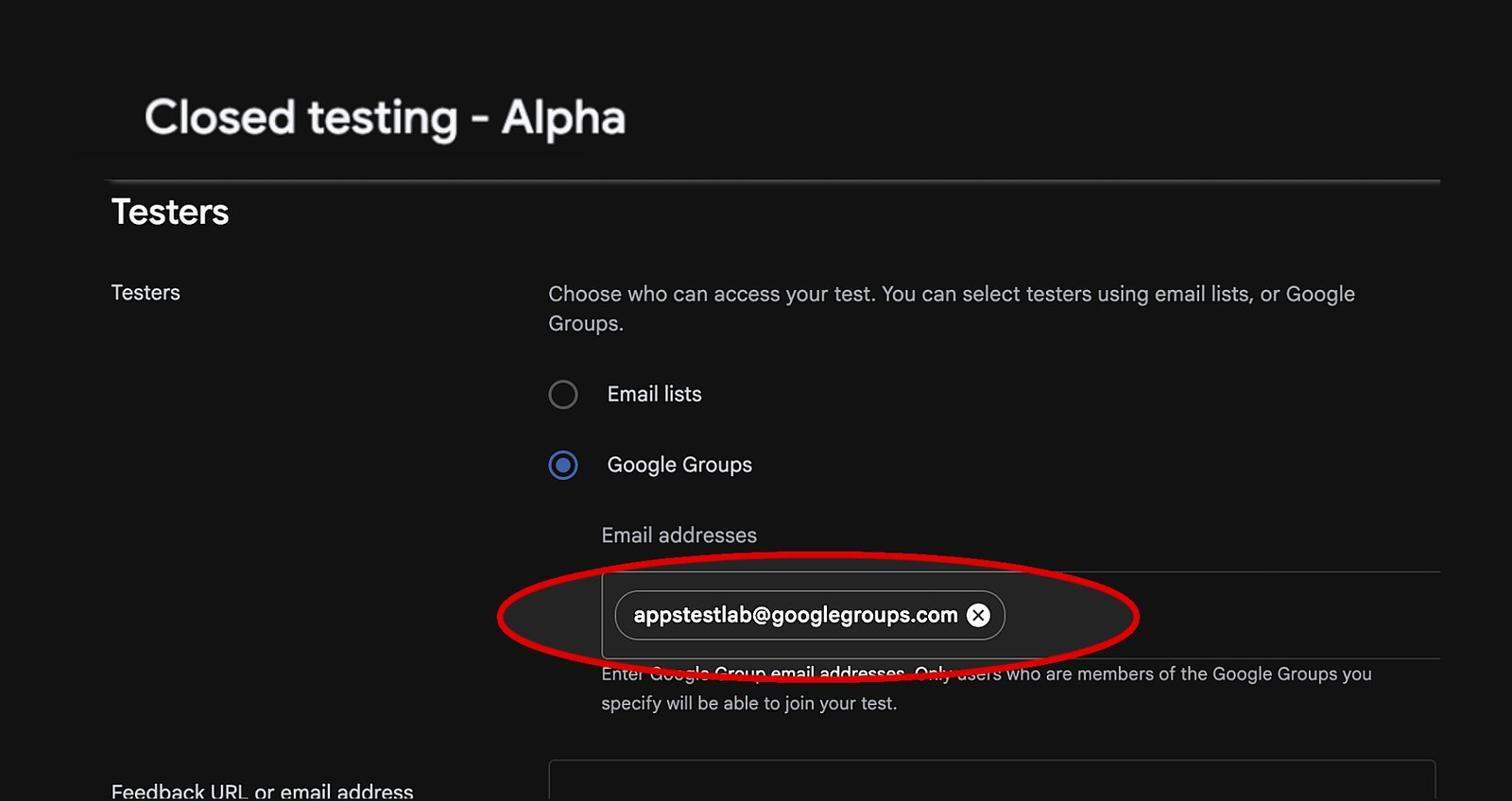
Select the Testers tab. Under the "Testers" radio buttons, uncheck Email lists and select Google Groups.
Click Add Google Group and paste the exact group email address your group generated (e.g., [email protected]).
Fill out the Feedback URL or support email so testers have an official channel to log bugs.
Click Save changes at the bottom right.
The Fatal Flaw of Free "Swap" Testing Communities
Once a Google Group is live, developers often share the link on Reddit (r/AndroidClosedTesting), Discord, or Facebook swap-groups, trading installs with other creators.
While this sounds cost-effective, relying on random community members introduces testing negligence that triggers swift rejections from Google’s manual review team:
The Open-and-Close Habit: Casual community testers will click your link, open the app for two seconds, and close it. Google tracks precise session durations; a pattern of 3-second interactions flags your data stream as artificial.
The Rapid Uninstall: Internet strangers often leave groups or clear their device space after a few days. If your active, installed tester count dips to 11 on day 12, your track fails automatically.
Emulator Overuse: Many forum users run automated scripts or emulators to simulate installs. Google's telemetry detects device hardware footprints; testing on virtual machines rather than physical devices results in immediate production denial.
Eliminate the Risk with Managed Professional Testing
If you cannot afford to have your launch delayed by another 14-day rejection loop due to inactive community testers, the most reliable path forward is to employ a professional, paid closed testing architecture early in your development cycle.
Rather than chasing down unverified internet users, leveraging a dedicated managed professional testing service guarantees that your application hits every single biometric performance standard Google's reviewers look for.
What Premium Professional Testing Includes:
Guaranteed 14-Day Testing Cycle: Continuous monitoring to ensure your track metrics run perfectly for 14 straight days without technical gaps.
20+ Vetted, Real-World Testers: Deploys a deep safety buffer of twenty or more real individuals using unique, physical Android smartphones—completely eliminating emulators.
Managed by an Expert inTesters Team: Seasoned QA coordinators make sure that the testers are actually engaging with your app for at least 2–3 minutes per session, so they’re poking around each layout a bit and tapping through separate views, to build tidy user telemetry. Sometimes it feels almost automatic, but the idea is to keep it moving without getting stuck, and yeah, a couple of minutes minimum.
Detailed Bug Reports: Real testers actively stress-test your interface, identify layout anomalies, isolate crashes, and provide structural quality assurance logs.
Device & OS Coverage Stats: Comprehensive diagnostic charts proving your application's absolute stability across diverse Android versions and major hardware manufacturers.
Google Play Compliance Check: Hands-on assistance summarizing test logs and structural feedback, giving you the exact technical responses required to ace Google's 10-question production access questionnaire.
Final Thoughts
Using a Google Group is the absolute best way to manage the logistics of your closed testing track, but the strategy is only as strong as the human beings inside that group. Avoid the temptation of cutting corners with inactive, free forum swaps that trigger automated flags. Build a clean testing track, deploy real physical devices, and present Google with the flawless engagement data required to open your path straight to production.
About the Author

Pratyush Kumar Thakur
Expert software tester and contributor to the community. Passionate about AI, automation, and user experience.