
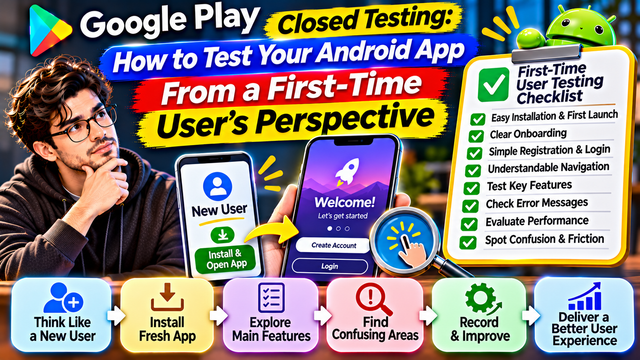
Learn how to test your Android app from a first-time user's perspective. Discover usability testing, onboarding checks, navigation problems, registration testing, and ways to improve the user experience before Google Play production.
Your Android application may work perfectly when you use it. You know where every button is, understand what each feature does, and already know how to navigate between screens.
But what happens when someone installs your app for the first time?
They do not know where to start, which buttons to tap, how the features work, or what to expect after completing an action.
A screen that seems obvious to its developer might be confusing to a new user. A registration process that takes a few seconds for you might feel unnecessarily complicated to someone who has never used the application.
This is why developers should test their applications from a first-time user's perspective during Google Play Closed Testing.
Instead of testing only whether features technically work, you should evaluate whether someone unfamiliar with your app can understand it, navigate it, and complete important tasks without assistance.
In this guide, we will explain how to perform first-time user testing, identify usability problems, evaluate important app workflows, and improve the experience before production.
1. Understand What First-Time User Testing Means
First-time user testing means evaluating an application as someone who has never used it before.
The tester should approach the application without relying on prior knowledge of its features, navigation, or functionality.
For example, imagine you have developed a food delivery application.
You already know that:
The menu icon opens the navigation panel.
The search icon helps users find restaurants.
The profile section contains account settings.
The cart icon displays selected products.
But a new user may not understand these things immediately.
They might:
Tap the wrong icon.
Struggle to find the restaurant search.
Miss the checkout button.
Become confused during registration.
Leave the application because the next step is unclear.
First-time user testing helps identify these problems before your app reaches a wider audience.
The objective is not simply to check whether the app works. It is to check whether people can understand how to use it.
2. Start Testing Without Using Your Developer Knowledge
One of the biggest challenges for developers is testing their own applications objectively.
You already know how the application is supposed to work. This makes it easy to overlook confusing instructions, unclear buttons, and unnecessary steps.
Try this simple exercise:
Install the latest testing version on a device.
Use a fresh test account.
Avoid referring to your development notes.
Open the application as if you have never seen it.
Explore the available screens naturally.
Attempt to complete the main application tasks.
Record every moment of confusion.
Do not immediately use shortcuts or follow a familiar navigation route.
Ask yourself:
Can I understand what this application does?
Is the next action obvious?
Are the buttons clearly labelled?
Can I find the main features?
Do I understand what happens after tapping an option?
Can I complete important tasks without help?
If you already know where everything is, ask someone unfamiliar with the app to perform the same exercise.
Their experience may reveal problems you have stopped noticing.
3. Evaluate the First Impression After Installation
The first few moments can influence whether someone continues exploring your application.
When a new user opens your app, they should be able to understand its basic purpose and what they can do next.
Check the following:
Area
What to Evaluate
App icon
Is it recognizable and appropriate?
Splash screen
Does it display correctly?
Loading screen
Does it disappear without unnecessary delays?
Welcome screen
Is the purpose of the app understandable?
Onboarding
Are the instructions clear and useful?
Home screen
Can users identify the main features?
Navigation
Is it easy to understand where to go next?
For example, if your application opens with a dashboard containing several unfamiliar icons, a first-time user may not know where to begin.
Consider adding clear labels, helpful descriptions, or a simple onboarding experience where appropriate.
Avoid displaying too much information at once. New users need a clear starting point, not a complete instruction manual disguised as a homepage.
4. Test the Registration and Login Experience
Registration and login are often among the first important tasks a new user encounters.
If this process is confusing or unreliable, users may leave before discovering the application's actual features.
Test the complete registration process from beginning to end.
Check:
Is the registration option easy to find?
Are the required fields clearly explained?
Are input instructions understandable?
Does OTP verification work correctly?
Are error messages meaningful?
Can users understand password requirements?
Is the login process straightforward?
Is password recovery easy to locate?
Does the application confirm successful registration?
Example testing scenario:
Task: Create a new account.
Open the application.
Find the registration option.
Enter the required information.
Request OTP verification, if applicable.
Enter the OTP.
Complete registration.
Confirm that the dashboard opens.
Record every confusing step.
For example, if a user does not understand why an OTP is required or cannot find the verification button, the registration process may need improvement.
Also test invalid inputs and failed verification scenarios to ensure that the application explains what went wrong.
5. Check Whether Users Can Understand the Home Screen
The home screen should help users understand the application's main purpose and identify the next action.
A common mistake is designing a homepage based on what developers think looks attractive rather than what users need.
Evaluate the following:
Are the important features visible?
Are menu labels understandable?
Are icons recognizable?
Is important information easy to find?
Are buttons clearly distinguishable?
Is the screen unnecessarily crowded?
Is the most important action easy to identify?
Consider this example:
A user opens a personal finance application and sees several options:
Accounts
Transactions
Reports
Insights
Analytics
Portfolio
Someone familiar with finance may understand these terms immediately.
A beginner may not.
Adding short descriptions or clearer labels can make the interface easier to understand.
Test whether a new user can identify the main purpose of each important section without asking for help.
6. Test Every Important Feature From a Beginner's Perspective
Do not assume that a feature is easy to use simply because it works technically.
A first-time user may struggle with the steps required to access or complete it.
Create a list of your application's main features and evaluate each one.
Example:
Feature
First-Time User Test
Expected Result
Registration
Create a new account
Account created successfully
Login
Access an existing account
Dashboard opens
Search
Find a specific item
Relevant results appear
Profile
Update personal details
Changes are saved
Notifications
Open a received notification
Relevant screen appears
Payments
Complete a test transaction
Correct payment status appears
Settings
Find an important setting
User can locate and update it
For each feature, ask:
Can the user find it?
Does the user understand what to do?
Are the instructions sufficient?
Does the feature behave as expected?
Is confirmation provided after completion?
This helps identify usability problems that ordinary functional testing might miss.
7. Observe Where Users Hesitate or Become Confused
One of the most useful parts of first-time user testing is observing how people behave when they do not know what to do next.
A tester may not report a problem because they assume they are using the application incorrectly.
Watch for signs such as:
Repeatedly tapping the same button.
Opening and closing the same menu.
Searching for an option that is difficult to find.
Returning to the previous screen several times.
Reading the same instructions repeatedly.
Asking what a particular icon means.
Abandoning a task halfway through.
For example:
A tester opens the profile screen but cannot find the Edit option.
They return to the dashboard, open the menu, revisit the profile, and try tapping the profile image.
The application may not have a technical bug, but the editing option is not sufficiently discoverable.
Record these observations.
Sometimes the most important usability problems are not crashes or errors. They are moments when users simply do not know what to do.
8. Check Button Labels, Icons, and Instructions
Buttons and icons should communicate what will happen when users interact with them.
A developer may understand an icon immediately because they designed it.
A new user may interpret it differently.
For example:
Unclear Element
Possible Improvement
Unlabelled icon
Add a descriptive label
Generic button saying Continue
Explain the next action where needed
Unclear error message
Explain the problem and possible solution
Missing confirmation
Display a success message
Confusing navigation menu
Use familiar section names
Unclear form instructions
Add short examples or guidance
Also check whether:
Buttons look clickable.
Important actions are visually distinct.
Text is readable.
Touch targets are comfortable to use.
Error messages explain what users should do next.
Confirmation messages appear after important actions.
Good interface design should reduce the amount of guessing required from users.
9. Test Error Messages From a First-Time User's Perspective
An application should not only work when everything goes correctly.
It should also explain problems when something goes wrong.
Imagine a user enters an incorrect password.
A message such as "Error 403" provides little help to someone unfamiliar with technical terminology.
A clearer message might say:
"Incorrect password. Please check your password and try again."
Similarly, if a network connection fails, explain that the application could not connect and provide a suitable next step.
Test common situations:
Incorrect login credentials.
Missing required fields.
Invalid email addresses.
Incorrect OTP.
Weak internet connection.
Session expiration.
Failed payment.
Missing permissions.
Unavailable server response.
A good error message should explain what happened without exposing sensitive technical information.
10. Evaluate the App's Performance During First Use
First-time users may have less patience with an application that takes too long to respond.
Even if the application eventually works, unnecessary delays can create a poor first impression.
Test:
Initial application startup.
Welcome screen loading.
Registration speed.
Login response.
Dashboard loading.
Image loading.
Search response.
Screen transitions.
Background and foreground behaviour.
Example:
Test Area
Observation
Result
App startup
Opens within expected time
Passed
Login
Takes several seconds
Review
Dashboard
Loads correctly
Passed
Search
Results appear slowly
Investigate
Profile
Opens without delay
Passed
Use appropriate performance tools and logs to investigate noticeable delays.
Do not rely only on statements such as "the app feels slow." Measure important operations and identify where time is being spent.
11. Test the Application on a Fresh Installation
Testing an application after using it for several days is different from testing it immediately after installation.
Developers often have saved preferences, previous login sessions, cached information, and existing account data.
These can hide problems that a new user might encounter.
Perform a fresh-install test:
Remove the existing testing application.
Install the current closed testing version.
Open the application for the first time.
Check the welcome and onboarding screens.
Grant or deny permissions as appropriate.
Create a new test account.
Explore the main features.
Close and reopen the application.
Check whether important information is saved correctly.
Also test the application with different permission choices.
For example, if location access is optional, verify that users can still access features that do not require location permission.
The application should explain why a permission is needed before requesting it whenever appropriate.
12. Test With Different Types of First-Time Users
Not every user has the same level of technical knowledge.
An application that feels easy to a developer may be difficult for someone who rarely uses similar applications.
Try involving testers with different backgrounds.
For example:
Someone who regularly uses Android applications.
Someone unfamiliar with your app category.
Someone with limited technical knowledge.
Someone who uses a different Android device.
Someone who has never used similar features.
Give them realistic tasks without explaining exactly where to tap.
For example:
"Create an account and find your transaction history."
Observe whether they can complete the task independently.
Do not guide them immediately when they become confused. Allow them to explore naturally, then record where they struggled.
This can reveal usability problems that scripted testing might miss.
13. Record the Time Required to Complete Important Tasks
Task completion time can help identify unnecessary complexity.
For example, if users need several minutes to find a basic setting, the navigation may need improvement.
Record:
Task name.
Starting screen.
Completion status.
Time taken.
Number of mistakes.
Number of times help was needed.
Points of confusion.
Example:
Task
Completion Time
Result
Observation
Create account
2 minutes
Completed
Clear instructions
Find settings
1 minute
Completed
Menu label unclear
Search product
30 seconds
Completed
Easy to use
Update profile
2 minutes
Failed
Edit option difficult to find
These measurements are internal usability observations, not official Google Play requirements.
Use them to compare experiences and identify workflows that deserve improvement.
14. Ask First-Time Users the Right Questions
After testing, ask users about their experience.
Avoid questions that encourage positive answers.
For example, instead of asking:
"Did you like our application?"
Ask:
What did you think the application was designed to do?
Was it easy to understand the home screen?
Which feature was difficult to find?
Did any instruction confuse you?
Were there moments when you did not know what to do next?
Could you complete registration without assistance?
Which task took longer than expected?
Did anything behave differently from what you expected?
What would you improve first?
These questions encourage more useful responses.
You can also ask testers to describe their experience in their own words rather than selecting only positive or negative ratings.
15. Create a First-Time User Testing Report
Keep a record of what each tester experienced.
A simple tracking format can help you compare results.
Field
Example
Tester ID
Tester 01
Device
Samsung Galaxy
Android Version
Android 14
App Version
1.0.2
Installation
Fresh installation
Main Task
Create a new account
Task Completed
Yes
Time Taken
2 minutes
Confusing Area
OTP verification
Reported Issue
Verification instructions unclear
Suggested Improvement
Explain where to enter OTP
Final Status
Improvement required
You can create separate worksheets for:
Tester information.
First-time user observations.
Usability issues.
Technical bugs.
Improvements and retesting.
This helps you identify repeated usability problems and track whether changes improve the experience.
16. Common First-Time User Testing Mistakes
Mistake
Better Approach
Testing only with developers
Include people unfamiliar with the app
Explaining every feature before testing
Let users explore independently
Ignoring hesitation
Record moments of confusion
Testing only after login
Evaluate the entire first-use journey
Using existing accounts only
Test fresh installations and new accounts
Ignoring error messages
Check how users recover from errors
Assuming icons are obvious
Test whether users understand them
Focusing only on crashes
Evaluate usability and task completion
Ignoring device differences
Include relevant Android devices
Fixing issues without retesting
Repeat the original user scenario
17. Practical Checklist: Test Your Android App Like a First-Time User
Use this checklist during Google Play Closed Testing.
Installation and First Launch
Install the latest testing version.
Test a fresh installation.
Check the app icon and splash screen.
Evaluate the welcome screen.
Review onboarding instructions.
Check initial loading behaviour.
Registration and Login
Find the registration option.
Create a new test account.
Test OTP verification if applicable.
Check login instructions.
Test incorrect credentials.
Check password recovery.
Navigation and Features
Understand the home screen.
Find the main features.
Test important buttons.
Check menu labels and icons.
Complete important user tasks.
Check confirmation messages.
Performance and Stability
Check startup speed.
Test screen loading.
Check search performance.
Test weak network conditions.
Review freezing and crashes.
Check background behaviour.
User Experience
Observe where users hesitate.
Record confusing instructions.
Check error messages.
Ask open-ended questions.
Record task completion.
Identify unnecessary steps.
After Testing
Organize feedback.
Prioritize important issues.
Implement improvements.
Retest the updated application.
Document actual results.
Conclusion
Testing your Android application from a first-time user's perspective helps you discover problems that developers may overlook.
You already understand how your application works. A new user does not have that advantage.
They need to understand what the application does, where to begin, how to navigate, and how to complete important tasks without unnecessary confusion.
That is why first-time user testing should be an important part of your Google Play Closed Testing strategy.
Do not focus only on whether a button works or whether a screen opens. Pay attention to whether users understand what to do next.
A technically working application is not automatically an easy-to-use application.
The goal is to create an experience where someone can install your app, understand its purpose, explore its features, and complete important tasks confidently, even without your assistance.
Frequently Asked Questions (FAQs)
1. What is first-time user testing in Android app development?
First-time user testing involves evaluating an application as someone who has never used it before. It helps identify confusing navigation, unclear instructions, registration problems, and usability issues.
2. Why should developers test their apps from a beginner's perspective?
Developers already understand their applications. New users do not. Testing from a beginner's perspective helps reveal problems that may be overlooked during normal development and technical testing.
3. Should first-time user testing be part of Google Play Closed Testing?
Yes. Google recommends using closed testing to identify technical and user experience issues before production. First-time user testing is a useful way to evaluate usability during that process.
4. How many first-time users should test an Android application?
There is no universal number that guarantees usability problems will be discovered. Start with a small group of people unfamiliar with your application, review their experiences, make improvements, and expand testing when useful.
5. What should first-time users test?
They should test installation, first launch, onboarding, registration, login, navigation, important features, error messages, performance, and common user workflows.
6. Should developers explain the application before testing?
Provide basic instructions about the testing purpose and any necessary safety information, but avoid explaining every feature or telling testers exactly where to tap. You want to observe whether the interface communicates its purpose naturally.
7. How can developers identify usability problems?
Observe hesitation, repeated taps, incorrect navigation, incomplete tasks, requests for assistance, and unclear instructions. Ask testers to explain what they expected to happen.
8. Does first-time user testing help with Google Play Production Access?
Yes. It can help developers identify and resolve user experience issues during closed testing. Developers must also summarize tester engagement and feedback and explain the changes made when applying for Production Access.
About the Author

Saksham Goyal
Expert software tester and contributor to the community. Passionate about AI, automation, and user experience.